12. The Mobile App
The EZ Pool Biller app is available for iPhone and Android. It walks the technician through each stop, one step at a time.
12.1 Installing & Logging In
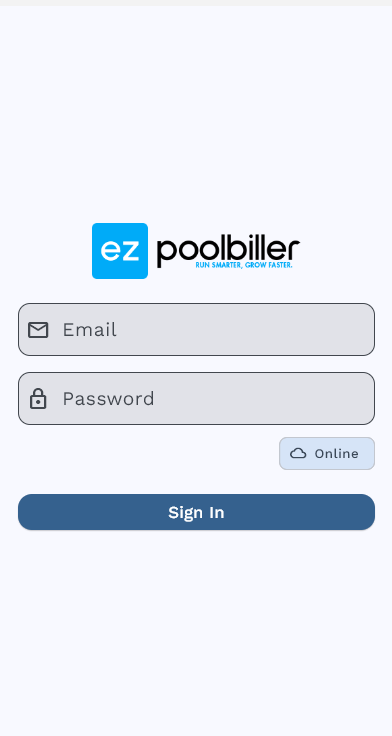
- Download the EZ Pool Biller app from the App Store (iPhone) or Google Play (Android).
- Open the app and enter the email and password provided by your manager (sent via email invite).
- On first login, accept the Terms of Service.
- The app will load your schedule.
12.2 Viewing the Daily Schedule
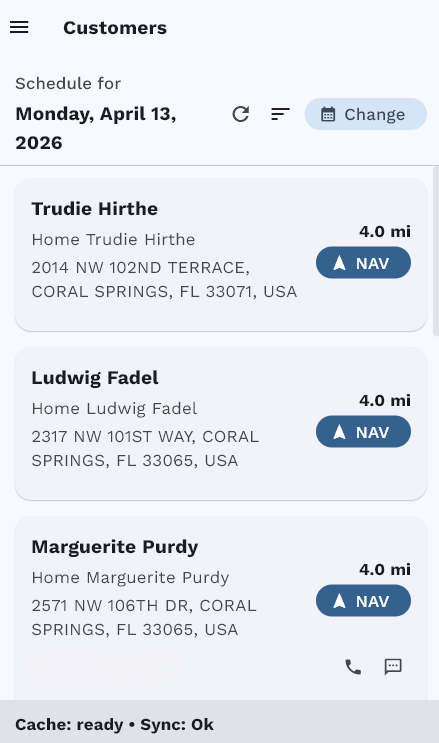
The home screen shows your daily schedule — a list of all service stops for the day in route order:
Each stop card shows:
- Customer name
- Address
- Service type (for example, Weekly Pool Cleaning)
- Gate code / service instructions
- Phone number (tap to call)
- Distance to the stop from your current location
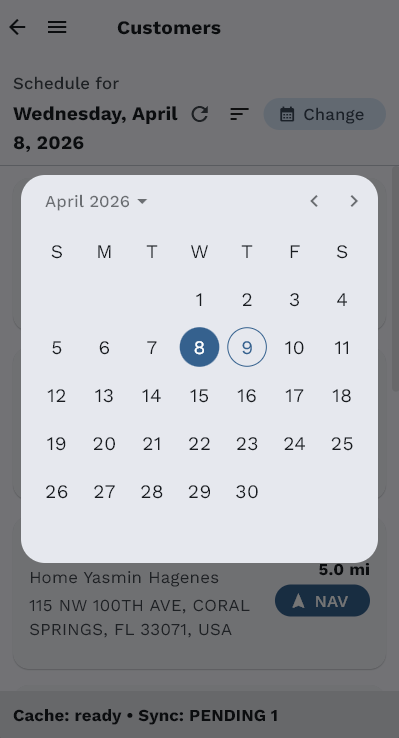
Use the calendar picker at the top to view past or future schedules. Changes made by the office (rescheduled stops, new assignments) appear in real time.
12.3 Starting & Completing a Service Visit
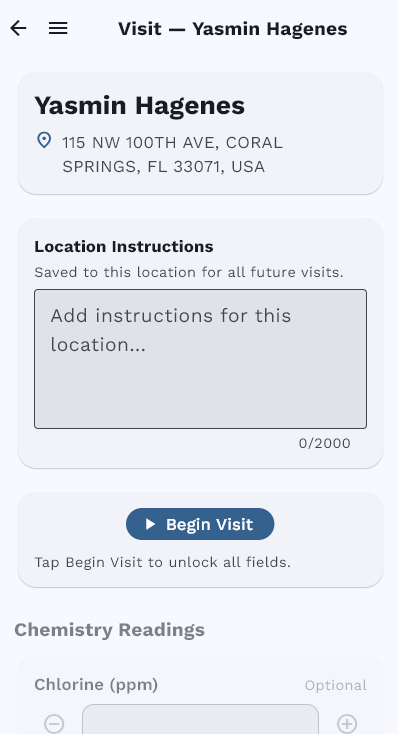
Starting a Visit:
- Arrive at the customer's location.
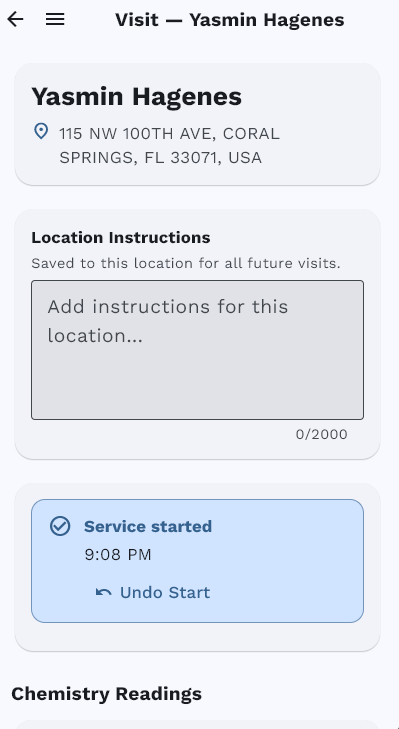
- Tap Begin Visit.
- The app records:
- Your GPS location (compared to the service address for verification).
- The timestamp.
- The technician name.
During the Visit:
- Record the Chemistry readings (12.4).
- Capture photos (12.5).
- Complete the checklist (12.6).
- Record any supplies used.
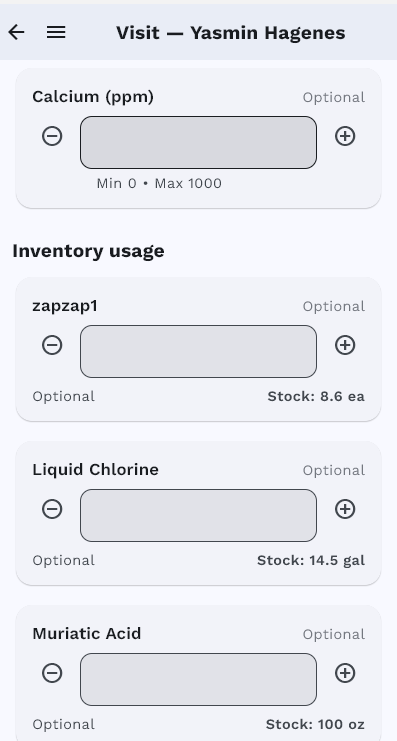
- Add optional service notes (e.g., "Filter needs replacement next visit").
Completing a Visit:
- Ensure all required checklist items are checked.
- Ensure the minimum number of photos has been captured (if configured).
- Tap Complete Visit.
- The app records your GPS location and timestamp again.
- The service is marked as complete in the system.
- If configured, a visit report goes to the customer by email, by text message, or both (see 2.5). The Start and Complete times you tapped can appear on it, when your company shows them.
12.4 Readings and notes
At each stop the technician records the Chemistry readings. This is what the standard checklist asks for:
| Asks for | Kind |
|---|---|
| Chlorine (ppm) | a number |
| pH | a number |
| Alkalinity (ppm) | a number |
| Stabilizer (ppm) | a number |
| Calcium (ppm) | a number |
| Algae Free | pick one |
| Services Completed | tick any that apply |
| Notes to Customer | notes |
Each reading has a sensible range — chlorine 0–30 ppm, pH 0–14, alkalinity and stabilizer in ppm — and the app rejects anything outside it, so a slipped decimal point gets caught at the pool rather than in the office.
Whatever the technician enters is saved to the customer's history. The pool service report shows the readings, the checklist answers, the products entered and the notes box when your company turns those sections on in Settings > Visit Reports (see 2.5). Only the checklist's notes box (Notes to Customer on the standard checklist) can reach the customer; the app's other notes stay with your office.
12.5 Photo Capture
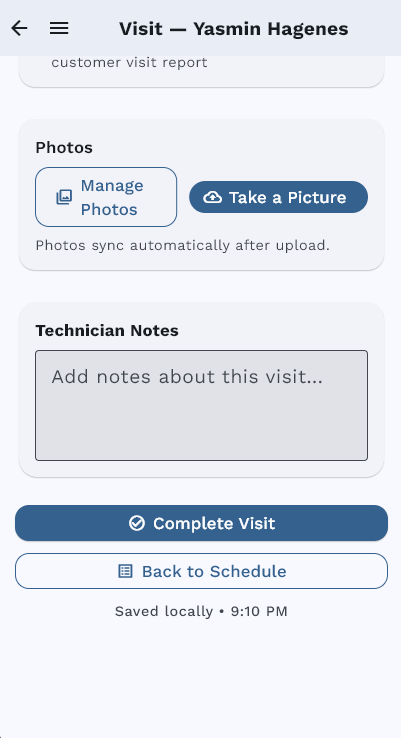
Photos provide proof of service and protect against disputes:
- Photos must be captured in real time using the camera — gallery uploads are not allowed.
- Each photo is automatically watermarked with:
- Date and time
- Technician name
- GPS coordinates
- Photos are always available in the admin portal. They appear in the customer's visit report when your company turns on Photos in Settings > Visit Reports, up to its Max photos.
- A minimum number of photos can be required before a visit can be completed (configurable per Recurring Billing Item).
12.6 Checklists in the Field
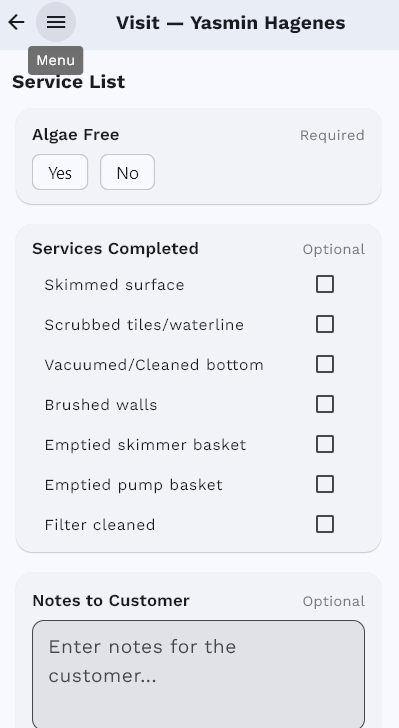
If the Recurring Billing Item has a checklist, it appears on the visit screen:
- Required items (marked with an asterisk) must be checked before the visit can be completed.
- Optional items can be skipped.
- This ensures every technician follows the same process consistently.
12.7 Offline Mode
The mobile app works offline. If a technician loses cell signal (common in rural areas or behind thick walls):
- The schedule is still visible.
- Visits can be started and completed.
- Photos, readings, and checklists are saved locally.
- When the connection returns, everything syncs automatically.
No data is lost — technicians can work uninterrupted.