16. Reports
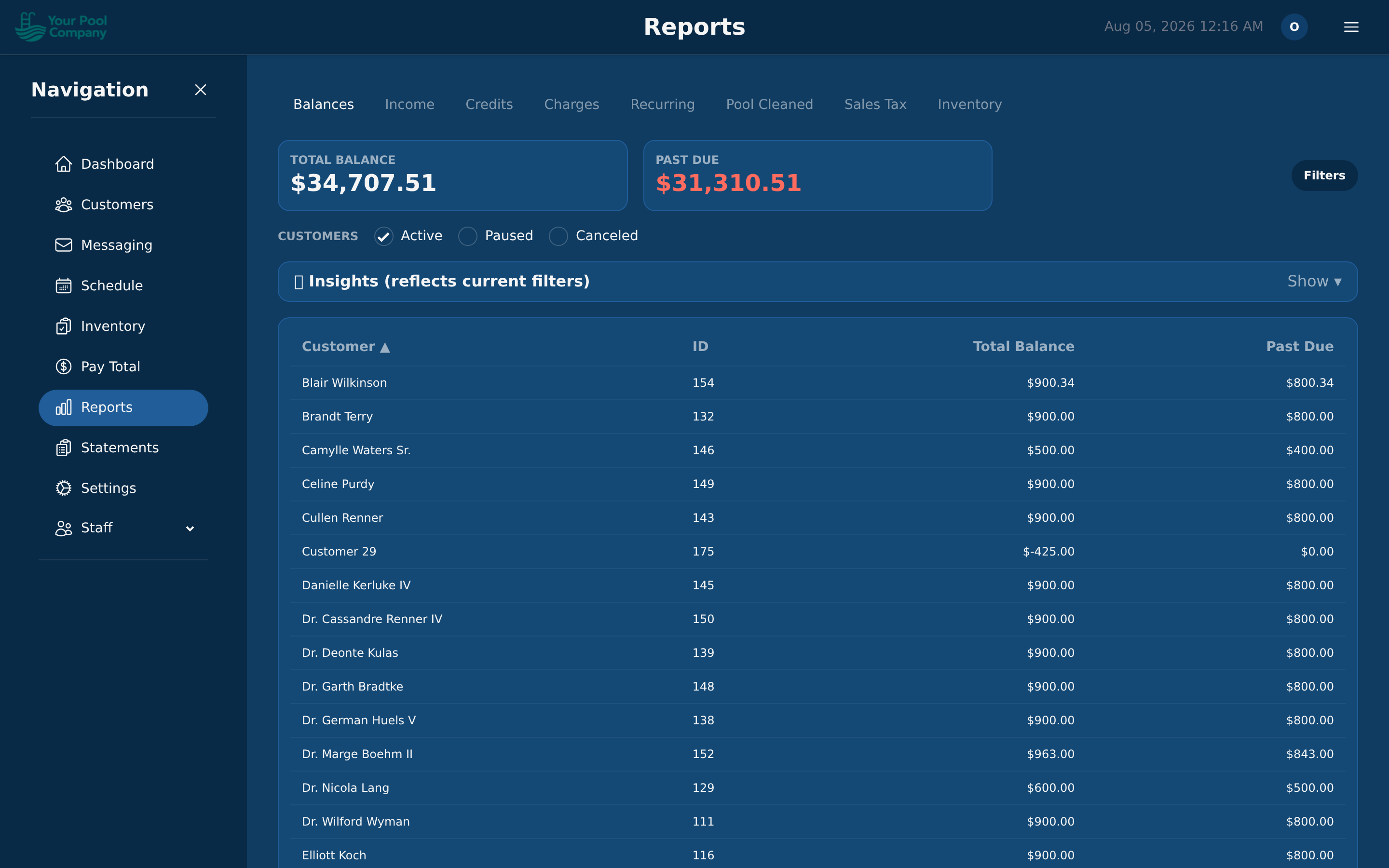
Every report can be filtered by date range and by customer.
16.1 The tabs, in order
| Tab | What it tells you |
|---|---|
| Balances | Who owes you money, and how overdue it is |
| Income | Money actually received, by period |
| Credits | Every credit you've given out |
| Charges | Every charge posted, by period |
| Recurring | What your repeating services are worth per month, and whether that's growing |
| Pool Cleaned | How many pool services were finished, by technician, period, or service type. The Technicians filter takes one technician or several |
| Schedule | Who is booked where, for any period — on screen, as a PDF or route sheets, or as a spreadsheet. See 16.5 |
| Sales Tax | Tax collected per period, for filing |
| Inventory | What you've used and what it cost — see 16.2 |
16.2 The Inventory tab
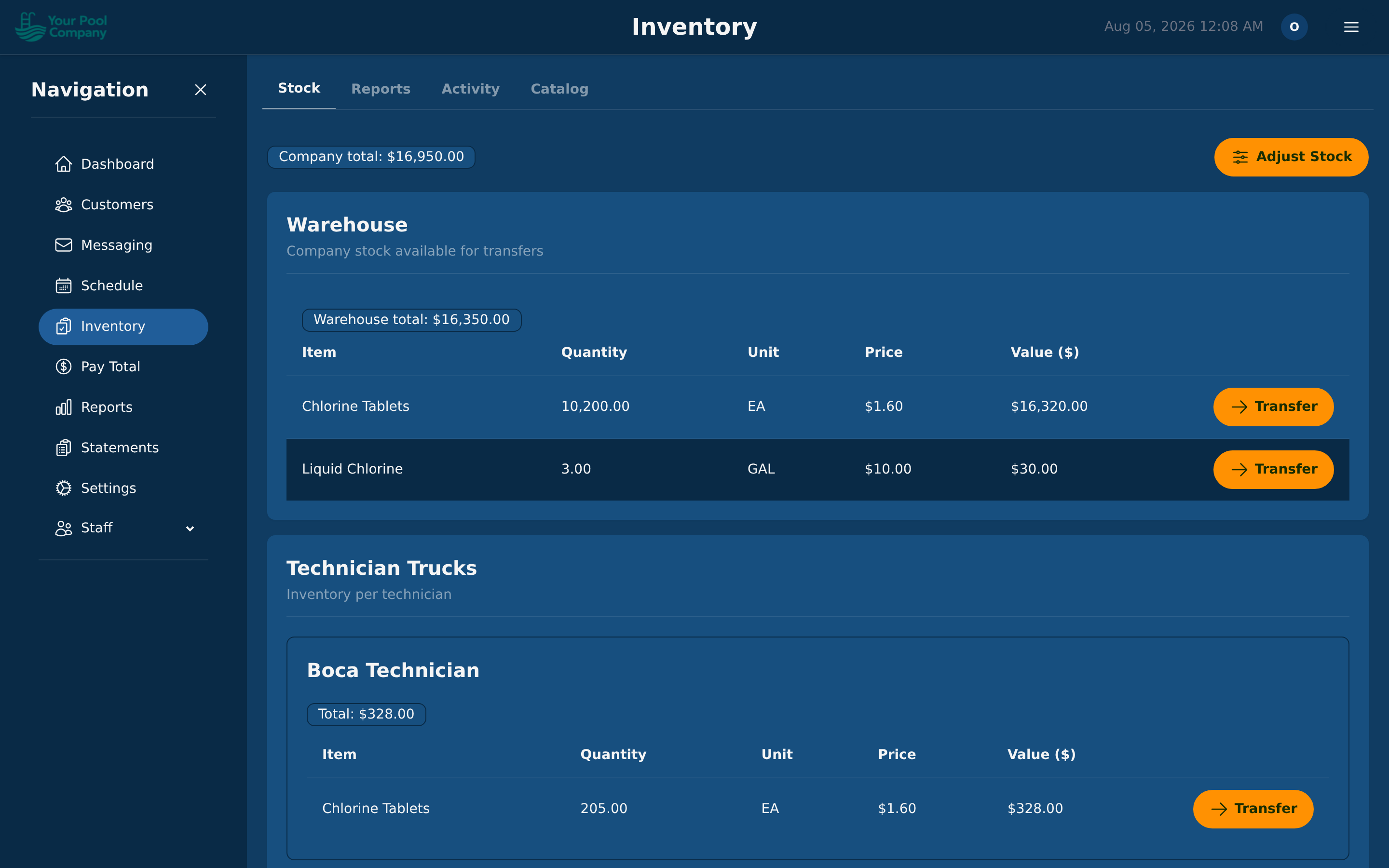
Three views inside one tab:
| View | What it tells you |
|---|---|
| Chemical Usage | How much of each item was used, by item, technician, or period |
| Chemical Cost | What that came to in money, per pool, per technician, or in total |
| Inventory Report | What your stock on hand is worth right now |
16.3 Sales tax

The Sales Tax report totals the tax you've collected in a period, so you can file the right amount without adding it up by hand.
16.4 Reading the numbers
- Balances answers "who should I chase?" Its Last payment and Owed for columns show how long each customer has owed, and Send past-due notices → takes the customers who owe you straight to chasing them (see 10.5 Past-Due Notices in Section 10).
- Income answers "what did we actually take?"
- Recurring answers "is the business growing?" — it's the one to watch month on month.
16.5 The Schedule tab
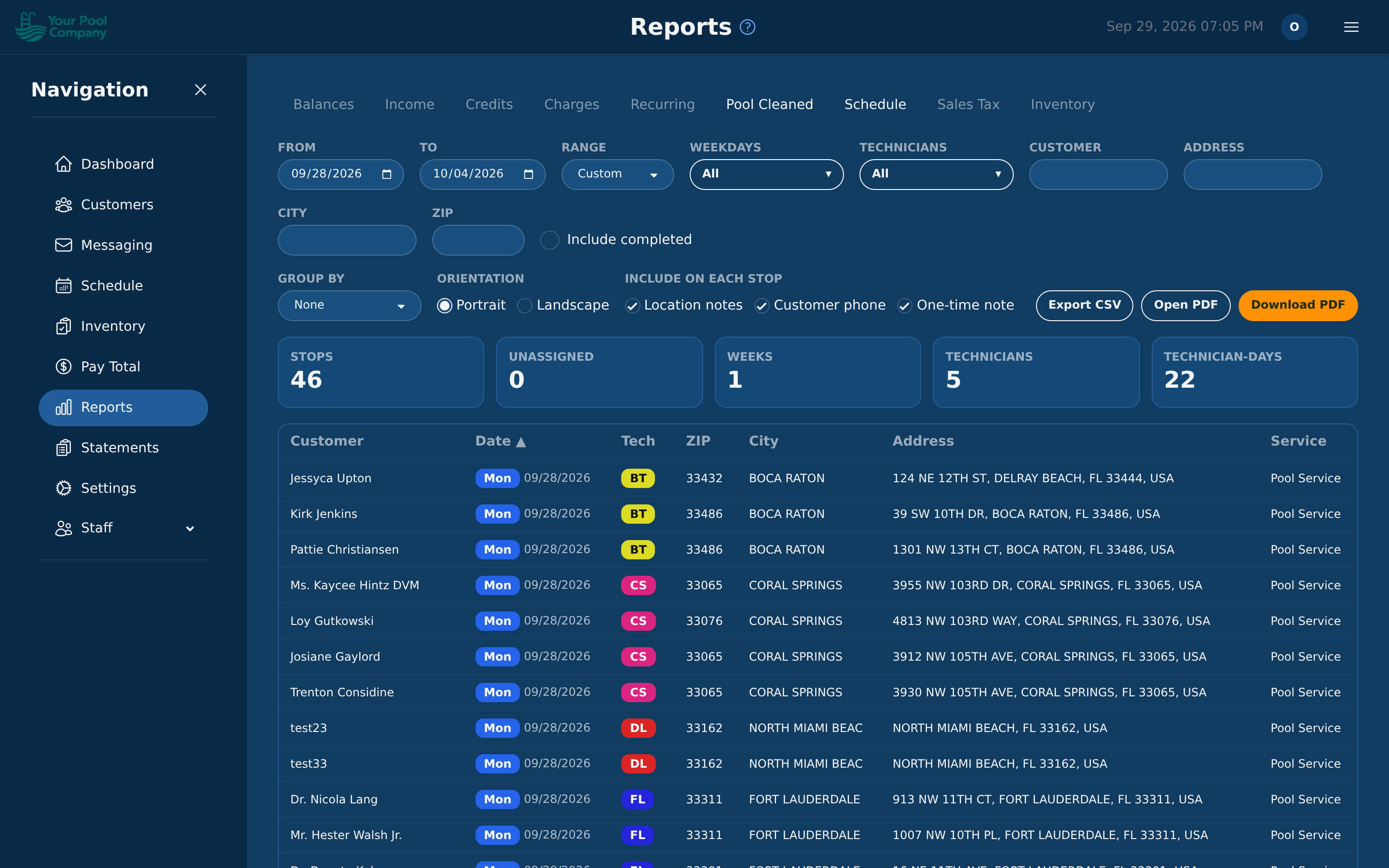
The Schedule tab lists the stops on your LIVE schedule for any period you choose — last month, next week, a whole season. It's the same list as Customize Routes (7.9), without the one-week limit, and it can be printed.
It opens on this week. To narrow it down:
| Filter | What it does |
|---|---|
| From / To, Range | The period. Range fills in this week, next week, last week, this month, last month or next month |
| Weekdays | One day or several — for example Monday and Thursday together |
| Technicians | One technician or several |
| Customer, Address, City, ZIP | Any part of the name or address |
| Include completed | Also list pool services already finished, with a Status column. Off to start with |
The table on screen is a preview of the PDF: same columns, same order, same grouping. Click a column heading to sort by it.
Printing:
- Group by works as in 7.10: None, Technician, Weekday, or Technician + day for one page per technician per day (route sheets).
- Portrait or Landscape.
- Include on each stop: Location notes, Customer phone and One-time note. They're printed on route sheets, and they're extra columns in the spreadsheet.
- Open PDF shows the PDF in a new tab; Download PDF saves it. One PDF holds up to 1,000 rows. For more, choose a shorter period or narrower filters.
- Export CSV saves the whole list as a spreadsheet, with no row limit.
Stops that aren't on anybody yet are listed last, under Unassigned. They're left out when you filter by technician.
Good to know:
- With Include completed off, a past period only shows the pool services that were never finished. A note above the table says how many finished ones are hidden, with a button to include them.
- If no schedule has been made yet for a week in your period, a note says so. Schedules are made a few weeks ahead.
- The report never shows a Draft (7.3): only what technicians can see.
- You may not see this if: your role doesn't include the Pool Cleaned report. The two tabs go together.