7. Scheduling & Routes
7.1 How it works
- Your repeating services create stops automatically — a weekly service makes one stop a week, or one on each visit day when it has several visit days a week.
- Those stops appear on the calendar.
- You put each one on a technician and a day, or let EZ Pool Biller work it out.
- You publish the week, and technicians see it on their phones.
7.2 Week and month views
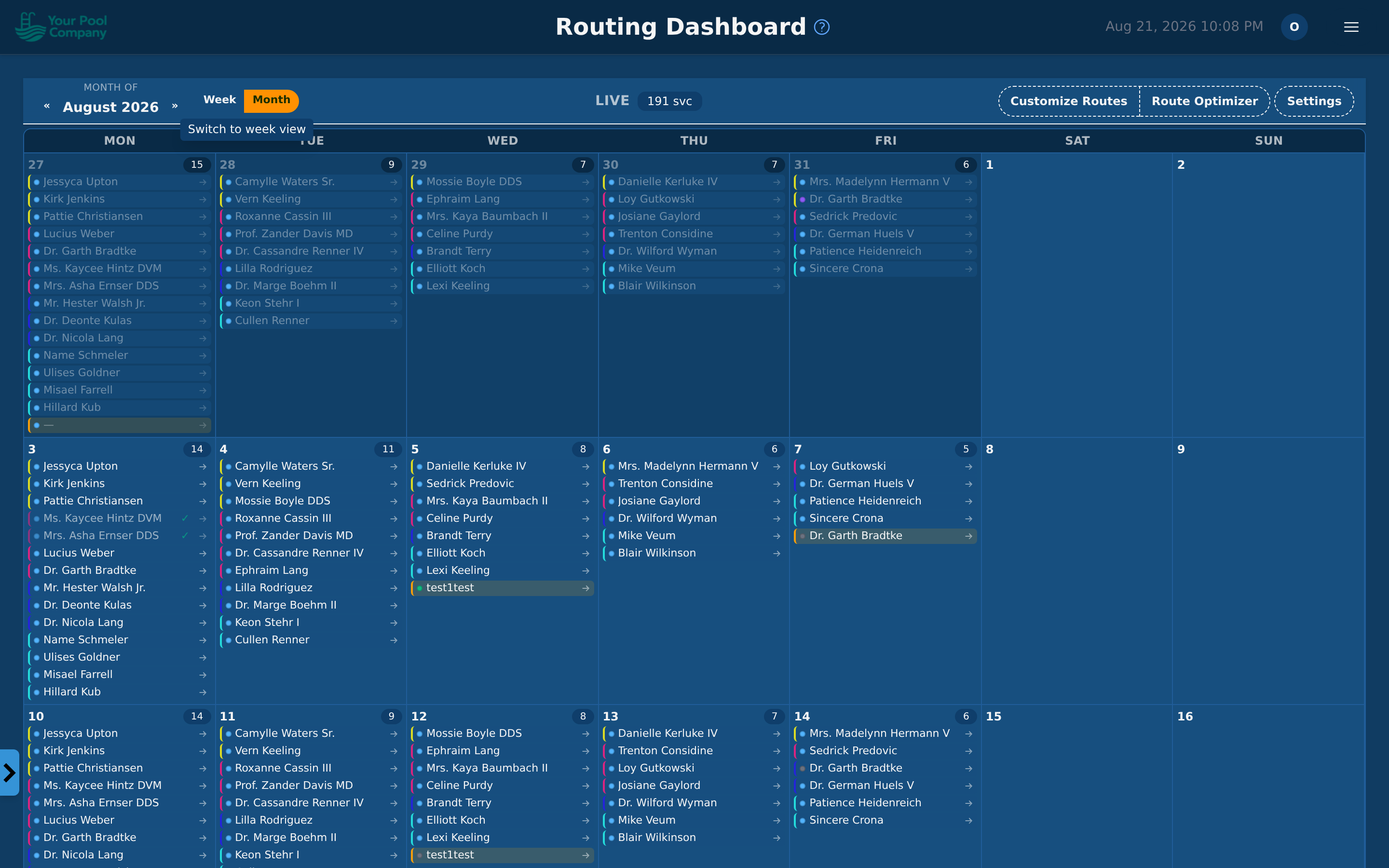
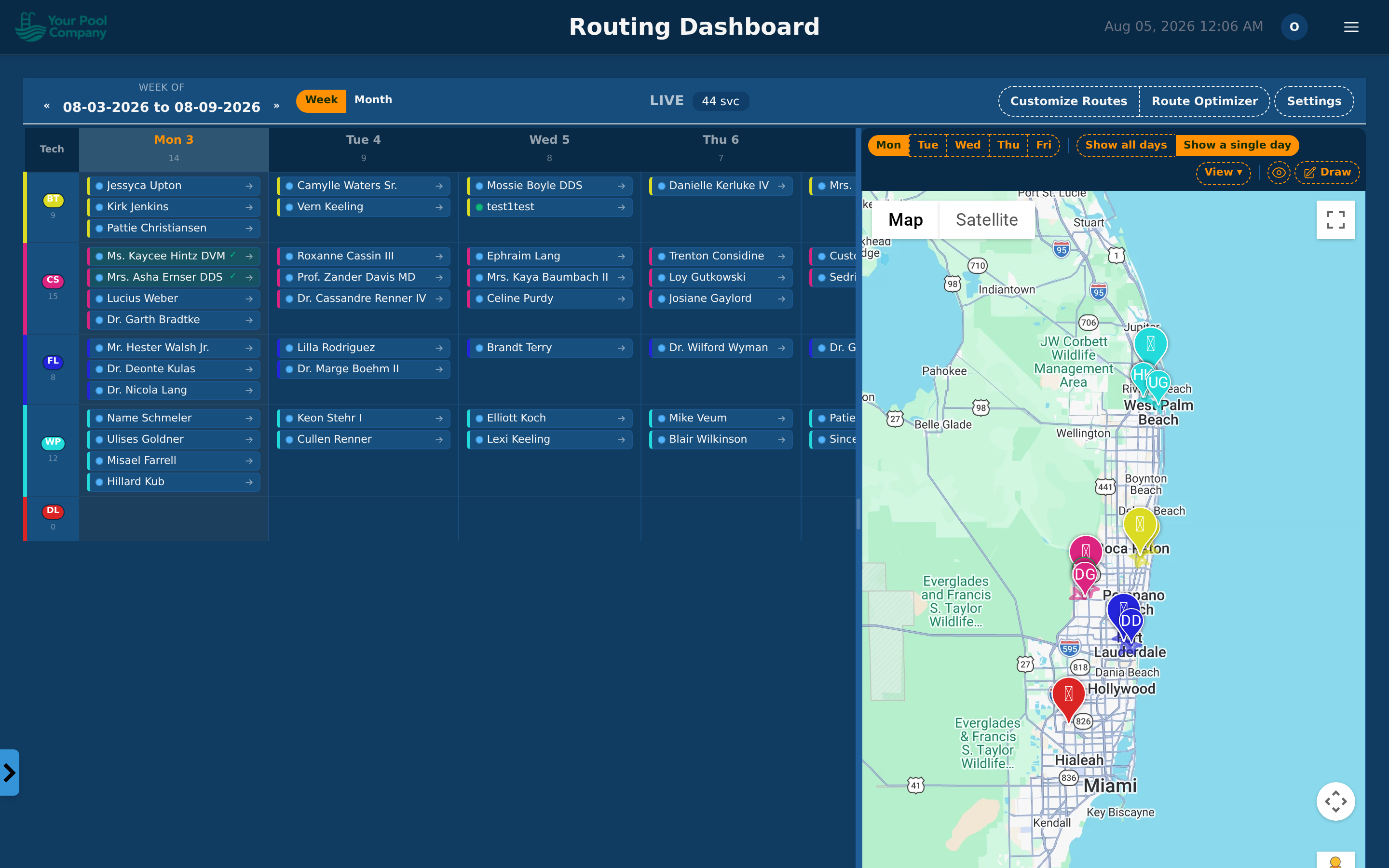
The calendar opens on the week view:
- Columns are the days.
- Rows are your technicians.
- Each stop is a small card showing the customer, the place, and the service. A coloured dot tells you which service it is at a glance.
There's also a month view for seeing the shape of a whole month. Use the arrows to move between weeks or months.
Click a day to open it and see everything booked that day. Hover a stop to see its details without opening anything.
7.3 Draft and LIVE
Two words matter on this page:
| What it is | |
|---|---|
| LIVE | What your technicians can see on their phones right now |
| DRAFT | Your private copy for making changes |
Nothing you do in a DRAFT reaches anybody until you publish it. Move stops around, change your mind, start over — technicians in the field see none of it.
To make changes safely:
- Click Create a Draft.
- Make your changes.
- Click Apply Draft to LIVE when you're happy.
Return to LIVE throws the draft away and puts you back to what technicians can see. Use it when you've made a mess and want to start again.
7.4 Moving stops around
- Drag a stop from one day or technician to another.
- Click a stop for its details, where you can change the technician, the day, and its place in the driving order.
- Stops that aren't on anybody yet sit in Overflow. Drag them onto a technician's day.
If a move breaks a rule — outside the technician's hours, or outside the hours that location allows — EZ Pool Biller stops and tells you which rule. You can go back, or choose Force anyway if you know something it doesn't.
Changing future weeks too: when you move a stop, you can tick to apply the same change to future weeks. Handy when a customer permanently switches from Tuesdays to Thursdays — you change it once instead of week by week.
Services with several visit days a week: each visit day moves on its own. Moving the Monday stop and applying it to future weeks moves only the Monday stops; the Wednesday and Friday stops stay where they are. EZ Pool Biller refuses a future-weeks move onto a day the service already visits, and warns you when a one-off move puts two stops of the same pool on one day.
Fixed visit days: route optimisation never moves a stop of a service whose days are fixed. You can still move one by hand: the calendar asks you to confirm first, and the Customize Routes sheet and drafts tell you after saving. Flexible days may be moved by route optimisation, keeping the visits apart.
7.5 Planning the route automatically
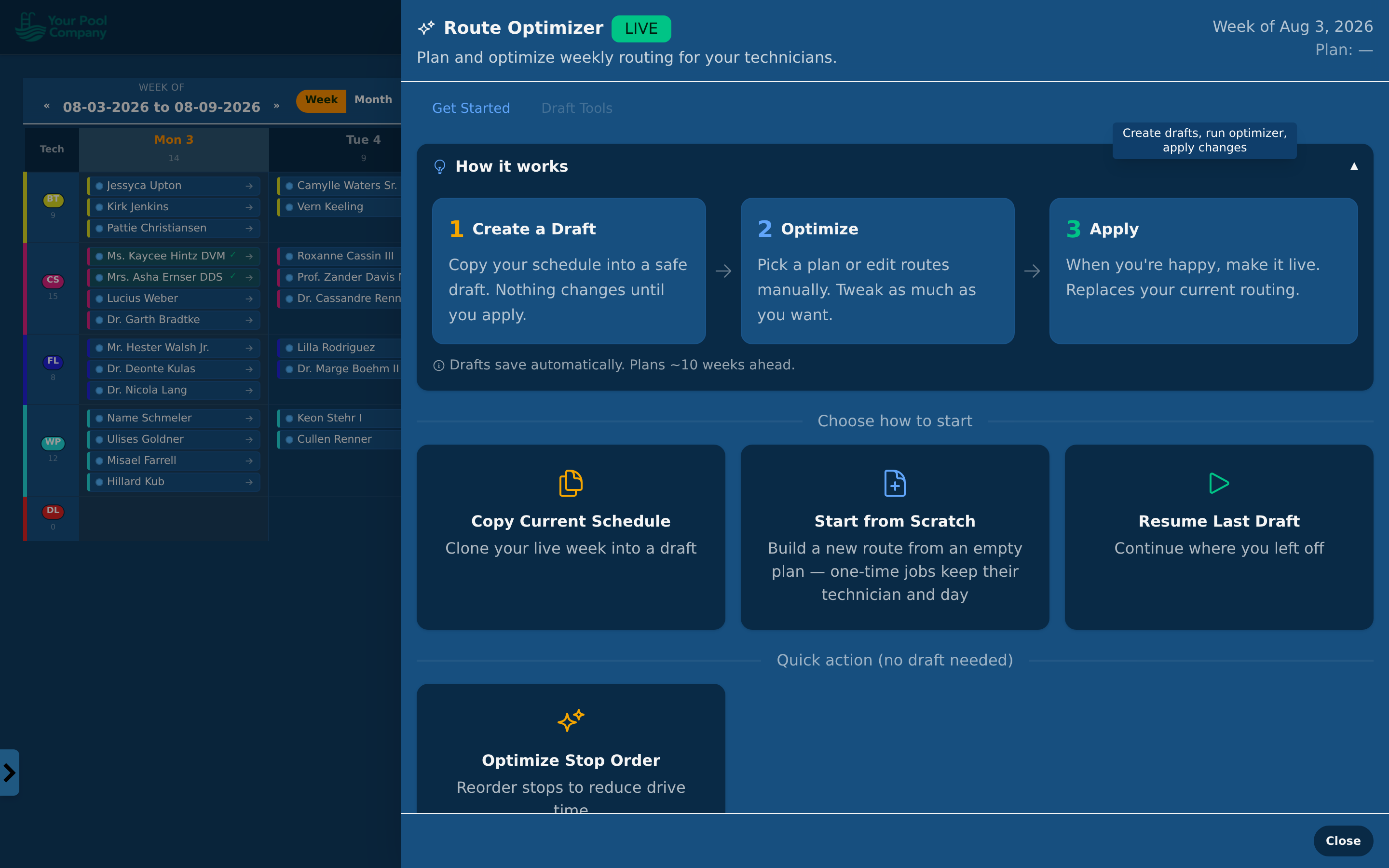
Open the Route Optimizer to have the driving order worked out for you.
- Make a Draft first (7.3).
- Open Route Optimizer.
- Choose how you want the week arranged:
| Mode | What it does |
|---|---|
| Concentrate (fill early week) | Fills the earlier days first and leaves later days lighter, so you keep room to move |
| Even out workload | Spreads the work evenly across the week |
| Equal distribution (balance across techs) | Balances the load between technicians so nobody is buried |
| Single split route (contiguous days) | Keeps each technician's work in blocks of days, cutting back-and-forth |
- Run it, then look at the calendar and the map.
- Publish with Apply Draft to LIVE when it looks right.
Optimize Order is the smaller version: it leaves who-does-what alone and only fixes the driving order within each day.
Two ways to affect more than this week:
- Apply To All Weeks — the optimizer covers the whole term, not just the week you're looking at.
- Copy to Future Weeks — mirror this week's technician-and-day assignments onto every future week.
Locking a stop: if a customer can only be done on a Tuesday, lock that stop first. The optimizer works around anything locked.
It also respects technician hours and breaks, how much each technician can take on, the hours each location allows, and who's qualified for the work.
7.6 The map
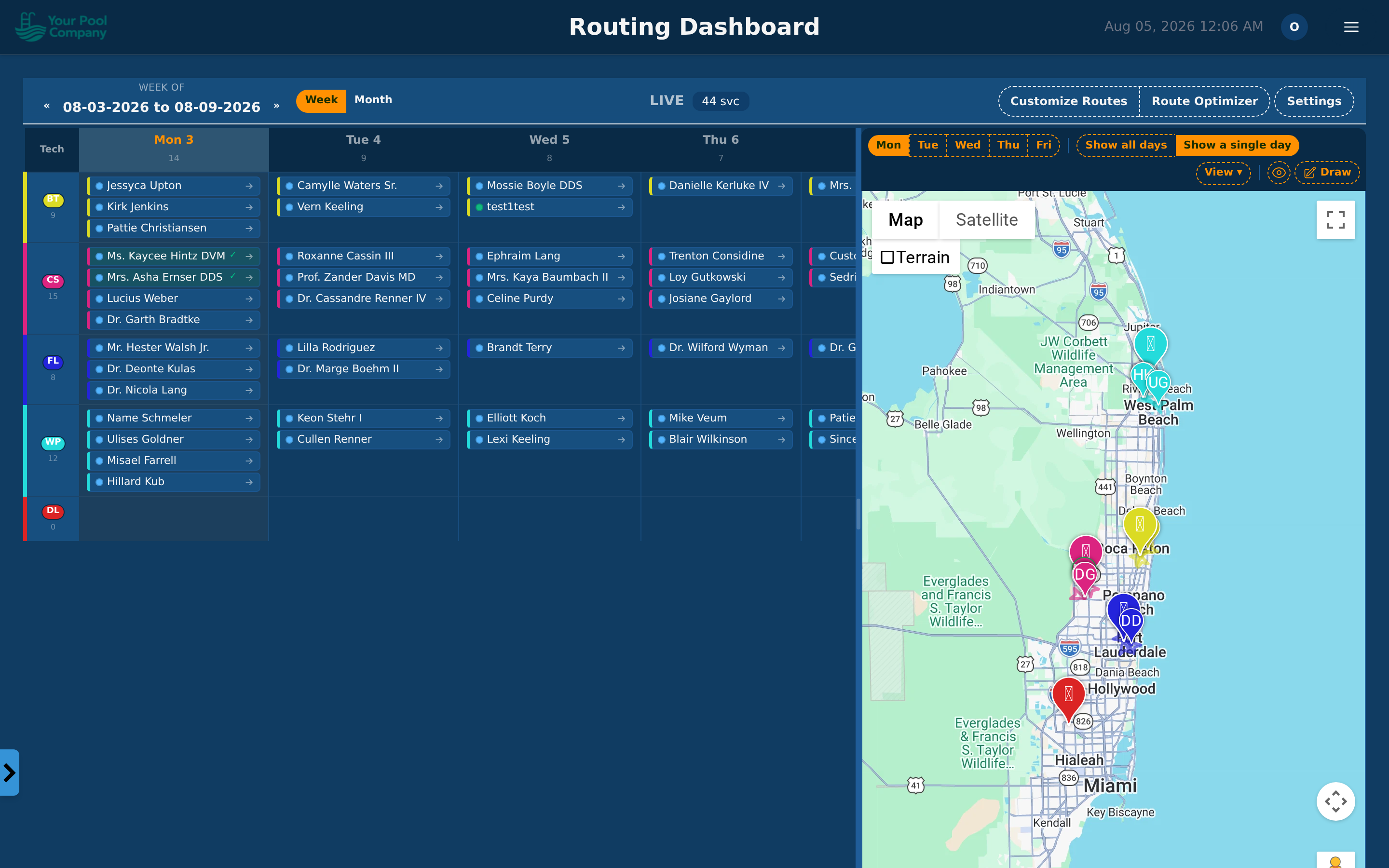
Switch to the map to see the stops as pins.
- Pin colours match the technician.
- Click a pin for the customer and address.
- Lines show the driving order.
- You can show your technicians on the map as well.
This is the quickest way to spot a stop on the wrong route — one pin miles from the rest usually means it's on the wrong person.
7.7 Changes during the week
Someone reschedules, a technician calls in sick, a one-off job comes in.
- Create a Draft for this week.
- Make the changes.
- Apply Draft to LIVE.
Technicians' phones pick it up straight away — nobody has to log out or refresh.
7.8 Marking work done from the office
If a job was finished but never closed on the phone, open the service and choose Mark completed. Useful for tidying up at the end of the week.
7.9 Customize Routes: many stops at once
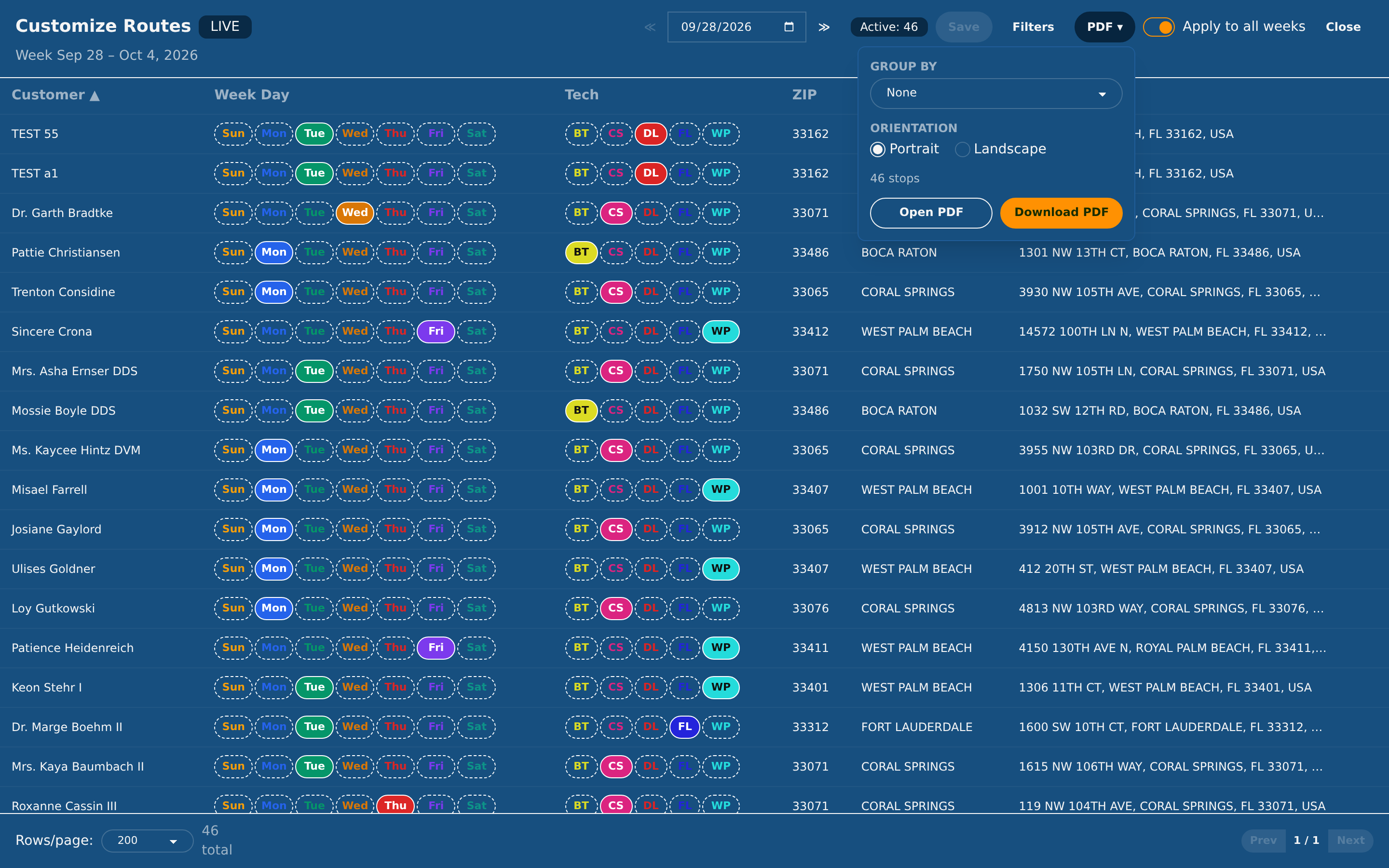
Customize Routes (top right of the Schedule page) lists the week's stops as a table, one row per stop: the customer, the day, the technician, the ZIP, the city and the address. It is the quickest way to move a lot of stops in one go.
You may not see this if: your role can look at the schedule but not change it.
- Click a day button to move a stop to another day, or a technician's initials to give it to someone else. Changed rows stay highlighted until you save.
- Save stores every change at once, then works out a new driving order for the days you touched.
- Apply to all weeks (on to start with) makes the same change in every future week, not only the one on screen.
- Filters narrows the list by weekday, technician, customer, address, city or ZIP. Click a column heading to sort by it. Customer sorts by last name.
- Use the arrows or the date box to change weeks. Past weeks can't be opened here; use the Schedule report for those (16.5).
Finished pool services aren't listed: there's nothing left to move.
7.10 Printing the week
PDF, next to Filters in Customize Routes, prints the week you're looking at: the same stops, the same filters and the same order as the table.
- Open Customize Routes and filter or sort the list the way you want it on paper.
- Click PDF.
- Choose Group by:
| Group by | What you get |
|---|---|
| None | One list, exactly like the table |
| Technician | One section per technician |
| Weekday | One section per day |
| Technician + day | One page per technician per day, to hand out as route sheets. The heading shows the day's miles |
- Choose Portrait or Landscape. Landscape keeps long addresses on one line.
- With Technician + day, choose what to print under each stop: Location notes (gate codes, pets), Customer phone and One-time note. All three start ticked.
- Click Open PDF to look at it in a new tab, or Download PDF to save it.
Every stop shows its customer, day, technician, ZIP, city, address and service; on route sheets the technician and the day are in the page heading instead. Stops that aren't on anybody yet come last, under Unassigned.
Good to know:
- The PDF button is greyed out while you're in a Draft: only the LIVE schedule is printed. It's also greyed out while you have changes you haven't saved.
- Customer phone only appears if your role is allowed to see customers' phone numbers.
- One PDF holds up to 1,000 rows. For more, print a narrower list, or use the Schedule report (16.5) for other periods.