2. Company Settings
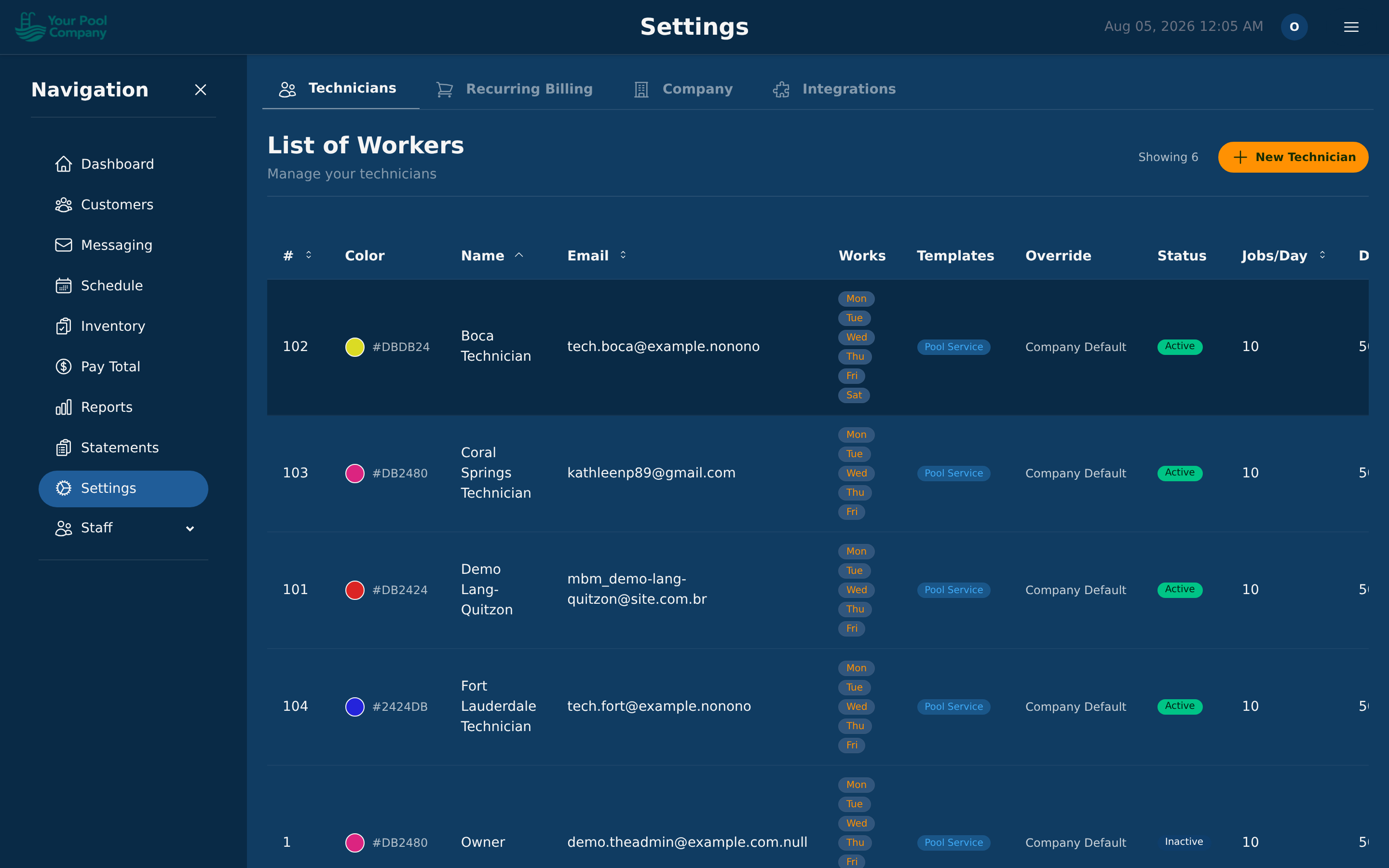
Settings has four tabs:
| Tab | What's in it |
|---|---|
| Technicians | Your technicians and their working hours |
| Recurring Billing | Your services — Recurring Billing Items and One-time Services (see Section 5) |
| Company | Everything on this page |
| Integrations | QuickBooks connection and export |
2.1 Company Profile
Under Settings > Company > General:
- Company Name — shown on statements, PDFs, and the customer portal.
- Company Address, City, State, ZIP — appears on PDFs and messages.
- Company Phone & Email — how customers reach you.
- Time Zone — every schedule and billing date uses this. Set it once and leave it.
- Logo — upload it here. It appears on statements, PDFs, and the portal.
Which contact lines a statement prints is set in the Statements card on the same tab: Show company address, Show company phone and Show company email, all on by default. Customers who pay by check use the address, so keep it on if you accept checks by mail. The address switch also covers invoice PDFs in the customer portal. Visit reports have their own switches (2.5). A closed statement's PDF is saved when it is first created and keeps the header it had then.
Held billing reminder, in the same Statements card, emails a reminder while billing from an inactive period is waiting for you to choose Bill or Skip (10.12). It is on by default and goes to the company email, or to your admin users when that is empty: first when the lines appear, then every Days between reminders (1 to 60, default 7) while any are waiting.
Your brand colour is set in the Setup Wizard, not on this tab — open Settings > Company > Run the Setup Wizard to change it.
2.2 Payment Gateways (Stripe & PayPal)

EZ Pool Biller integrates with Stripe and PayPal to process customer payments.
Connecting Stripe:
- Go to Settings > Company and scroll to the Payments section.
- Enter your Stripe API keys (publishable key and secret key).
- Toggle between Test Mode and Live Mode.
- Use Test Mode during setup to verify everything works without charging real cards.
- Switch to Live Mode when you're ready to accept real payments.
Connecting PayPal:
- In the same Payments tab, enter your PayPal credentials.
- PayPal supports both one-time payments and vault-based recurring payments. Automatic (recurring) PayPal payments only work once PayPal has approved your account for them — see 10.6 if PayPal refuses.
Gateway Order: If you have both Stripe and PayPal active, you can set the preferred order for autopay attempts.
Important: Keep your gateway in Test Mode while you're learning the system. Switch to Live Mode only when you're ready to process real payments.
Bank transfers (ACH)
Stripe can also take payments straight from a customer's US bank account. It is worth turning on for larger bills: a bank transfer typically costs 0.8% capped at $5, where a card costs around 2.9% + 30¢. On a $600 bill that is roughly $4.80 instead of $17.70.
Cards and bank transfers are independent switches. You can offer both, or only one — for example, bank transfers only for commercial accounts you bill for large amounts.
Turning it on:
- In Settings > Payments, save your Stripe publishable and secret keys first. Bank transfers run on your own Stripe account, so the keys are required even if you keep card payments switched off.
- In your Stripe dashboard, activate ACH Direct Debit (Stripe may label it "US bank account") under payment methods. Stripe sometimes reviews this before it becomes active.
- Back in Settings > Payments, add your Stripe webhook signing secret. The page has a Setup instructions button that walks through creating the webhook in Stripe step by step, including which events to select.
- Switch on Accept bank transfers (ACH).
- Optionally set an ACH fee — a separate percentage and cap from your card fee, so you can pass on the lower cost.
Why the webhook secret is required: a bank transfer is not instant. Stripe notifies EZ Pool Biller when the money finally clears, and the signing secret is how we verify that notification genuinely came from Stripe. Without it we cannot tell a real settlement from a forged one, so ACH cannot be enabled.
Limits: bank transfers are US-dollar only, and a single payment is capped at $25,000 (cards are capped at $5,000).
Late fees
EZ Pool Biller can add a late fee automatically when a statement is still unpaid after its last day to pay. Late fees are off until you switch them on in the Late Fees box of Settings > Company > Payments. Only people who can open the Payments tab can change them. Late fees work with statement billing only (2.6).
How it works:
- You choose the day of the month that is the last day to pay. By default it is your Automatic Payment Processing Day, and it moves with it. A statement's last day to pay is the first such day after the statement closes.
- On the day after the last day to pay, the daily billing run adds one late fee for each statement that is still unpaid. The fee appears on the customer's next statement and in the customer portal.
- Earlier late fees never count toward what is unpaid: a customer who has paid every charge except an earlier late fee is not charged again.
- Customers paying by automatic payments are not charged while a payment is on its way or being retried.
Example: with a $25.00 fee and the 5th as the day, a statement that closes on October 31 must be paid by November 5. If $5.00 or more of it is still unpaid, a $25.00 late fee is added on November 6.
The settings:
| Setting | Default | What it does |
|---|---|---|
| Fee type | Flat amount | A flat amount, or a percentage of the unpaid balance (with an optional maximum fee) |
| Charge late fees after day | Automatic Payment Processing Day | The last day to pay |
| Minimum unpaid balance, not counting late fees | $5.00 | No fee below this amount |
| When a customer stays unpaid | One fee for each unpaid monthly statement | Or one fee until the balance is paid in full. With the first, a customer who never pays is charged every month until you exempt them |
| Include earlier unpaid late fees in the percentage | On | Percentage fees only |
| Charge customers on automatic payments once their payment retries have run out | On | Off: customers with automatic payments set up are never charged a late fee automatically |
| Email the customer when a late fee is added | Off | |
| Print the late-fee terms on statements | Off | A line under the statement totals with the last day to pay and the fee |
When the first fees come: statements whose last day to pay is after the day you switch late fees on are charged, including statements already sent. The box shows the date of the first fees.
Changing the settings: changes apply from the next daily run, also to statements already sent. For example, moving the day earlier can make a statement's last day to pay a date that has already passed; it is then charged in the next run.
Good to know:
- If you have been adding late fees by hand (Charge, category Fee), stop when you switch automatic late fees on. Those charges are not counted as late fees.
- Customers whose statement delivery is set to none are still charged. With the email and the statement terms off, they may learn of the fee only from the customer portal or a later statement.
- If you record a payment dated on or before the last day to pay after the fee was added, waive the fee from the customer's transactions (10.13).
- Some states limit late fees; check the rules that apply to your business.
2.3 Customer Portal Settings

The Customer Portal gives your customers 24/7 self-service access to their account:
- Enable/Disable Portal — toggle portal access for all customers.
- Payment Method Management — allow customers to save, update, or remove their payment methods.
- Show Login on Statements — include a portal login link on PDF statements.
More details on the portal in Section 13.
2.4 Communication Settings (Email & SMS)

Email (SMTP):
- Configure your SMTP server for outbound emails (statement delivery, visit reports, password resets).
- Set your From Name and From Email.
- Add custom email footer text that appears at the bottom of every email.
- If your emails stop going out, a warning appears at the top of every page, Some of your emails are not going out, saying what the mail server answered and what to change. It clears by itself once an email goes through.
- Personal Outlook.com and Hotmail addresses can't be used. Microsoft no longer lets apps like this one sign in to them with a password, so no password will work. Use an email address on your own website's domain, or one from your hosting provider. For a Microsoft 365 business mailbox, whoever manages it can allow it.
SMS:
- SMS messaging uses Twilio. Enter your Twilio Account SID, Auth Token, and sending phone number.
- Once configured, you can send text messages to customers and enable SMS appointment reminders.
2.5 Visit Report Settings

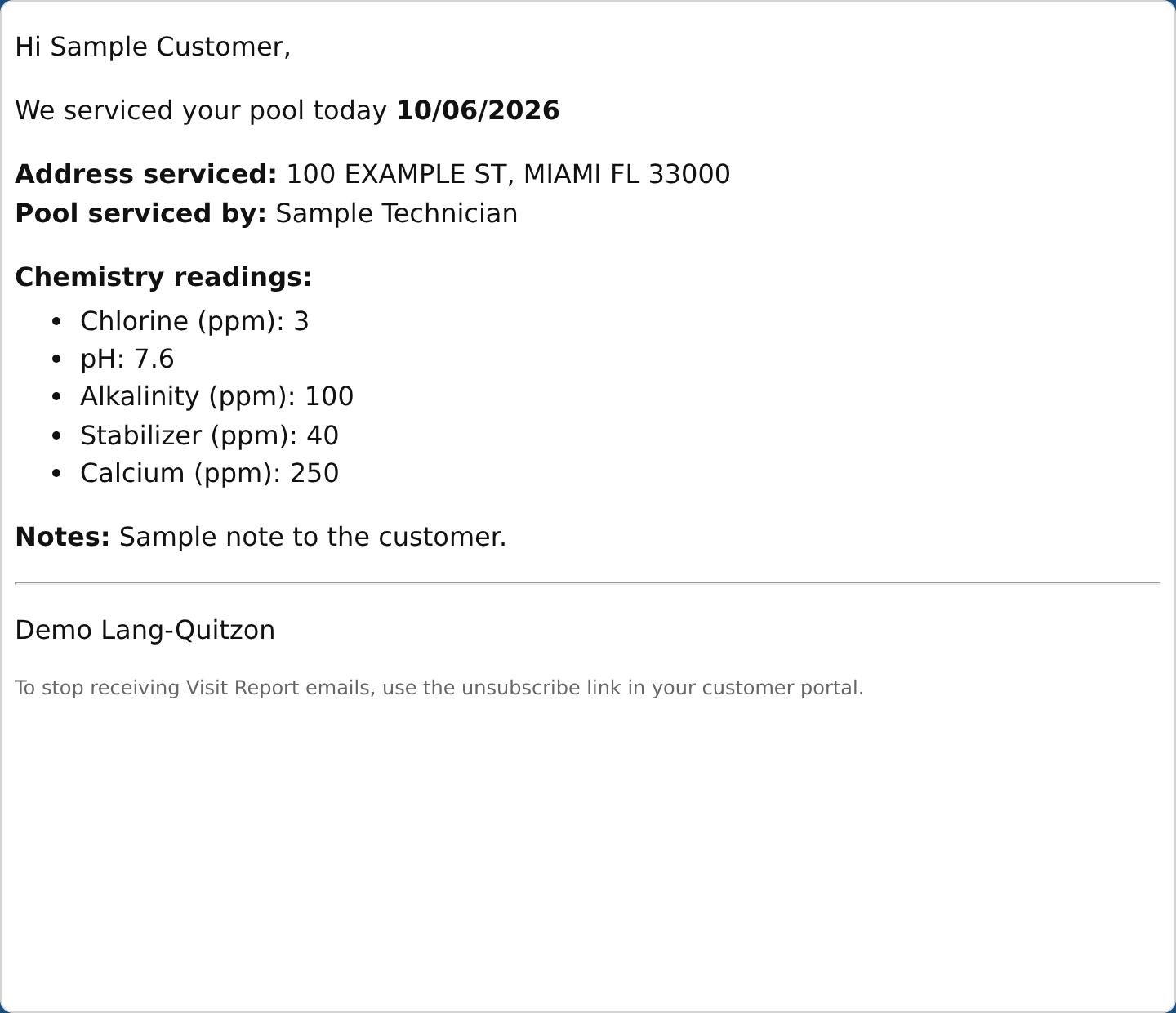
After each completed pool service, a visit report can go to the customer by email, by text message (a link to the report), or both. The email and the web page that the link opens show the same report. The same settings appear in step 4 of the setup wizard.
- Send Visit Report email — turns the email on or off.
- Show unsubscribe footer — adds a link customers can use to stop these emails. The tab shows how many customers have unsubscribed.
Report content — what the report shows. An item appears only when the pool service recorded it, so a report never shows an empty heading. Items marked NEW start off; turn them on when you want them. Your staff screens always show everything the technician recorded, whatever the report shows.
| Group | Item | What the customer sees |
|---|---|---|
| Visit details | Address serviced | The address of the location |
| Service performed (NEW) | The service name, exactly as written in Settings. If a name is meant only for your office, rename the service before turning this on | |
| Pool serviced by | The technician who completed the visit | |
| Start and completion times (NEW) | When the technician tapped Start and Complete in the app, for example "Started 9:03 AM – Completed 9:41 AM". With this off, the report shows the date only | |
| Time on site (NEW) | Minutes between start and completion. Customers will see short visits as short | |
| Next scheduled visit (NEW) | The date of the next visit on your active route plan (never a draft). If you move the visit after the email went out, the email keeps the old date and the web page shows the new one | |
| What was done | Photos | Thumbnails in the email (each opens the full photo) and a gallery on the web page. Max photos limits how many; 0 shows all of them. Some mail apps hide images until the customer allows them; the link to the full report stays in the email |
| Chemistry readings | The readings the technician entered, with their units | |
| Work done (NEW) | The checklist answers, such as Algae Free and Services Completed. A checklist item whose report group is None is never shown | |
| Chemicals and products added (NEW) | The products and quantities the technician entered, even when the product could not be taken from the truck stock | |
| Notes to customer | The checklist box for notes to the customer | |
| Footer | Company address | Your address under your company name, which always shows. Visit reports only: statements have their own switch (2.1) |
| Company phone | Your phone under your company name. Visit reports only: statements have their own switch (2.1) |
If an item can't be used yet — for example, none of your checklists records chemistry readings — its switch is greyed out with the reason, and your saved choice is kept.
Preview shows the email with the choices on the screen, saved or not, for your last completed pool service or for a sample visit. Nothing is sent. Open web page shows the web page of that visit with your saved choices. In the setup wizard the preview uses a sample visit, because a new company has no visits yet.
Text message (SMS)
- Send SMS with Visit Report link — sends a short text with a link to the report.
- Append 'Reply STOP to opt out' — adds the standard opt-out line.
Report links are signed and expire after 15 days. Customers can unsubscribe from visit report emails at any time via the link in the email.
2.6 Billing Method (Per-Service vs. Monthly Statement)
This is one of the most important settings for your pool care business. It determines how your customers are billed.
Per-Service Mode:
- A charge is posted each time a service is completed.
- Best for companies that bill per visit, or want billing to keep pace with the work.
- Each completed job puts its own charge on the customer's account straight away.
Monthly Statement (Per-Period) Mode:
- All charges in a month are collected into a single monthly statement.
- Each statement covers one month.
- At the end of each period, the statement is closed with all charges, payments, and credits.
- Best for companies that send monthly bills.
Either way the customer receives one statement — the method changes when a charge lands on it, not what they are sent. See Section 10.