1. Getting Started
1.1 What this software does
EZ Pool Biller runs the whole of your pool care business from one place. It was built by pool care professionals with over 70 years of combined experience in the trade.
Here's what it covers:
- Customers & Locations — every customer and every address you service, in one list.
- Schedule & Routes — plan the week and cut down driving time.
- Billing & Payments — bill customers automatically and take cards, bank payments, and PayPal.
- Mobile app — your technicians get a step-by-step job on their phone, with photos.
- Inventory — track supplies from the warehouse to the truck to the pool.
- Payroll — work out technician pay by the hour, by the stop, or by the job.
- Reports — see your revenue, your tax numbers, and how the team is doing.
- QuickBooks — keep your books up to date without typing anything twice.
- Customer portal — customers can see their bills, pay online, and read their pool service reports any time.
Every feature is included. What you pay depends on how many locations you service in a month — see Section 18.
1.2 Setup wizard — your first 30 minutes
The first time you log in, a 6-step setup wizard walks you through the essentials. You can come back to it any time from Settings > Setup Wizard.
Step 1 — Company profile
- Enter your company name, address, phone, and email.
- Pick your timezone. Every schedule and billing date uses it, so get this one right.
- Choose how you bill:
- Per-Service — a bill goes out each time a job is finished.
- Monthly Statement — everything for the month goes onto one bill.
Step 2 — Payment settings
- Connect Stripe to take card payments.
- Connect PayPal as well, if you want to.
- Choose Test Mode while you're learning, or Live Mode to take real money.
You can skip this and set it up later under Settings > Company.
Step 3 — Customer portal
Turn the customer portal on or off, and decide whether customers can manage their own saved cards.
Step 4 — pool service reports
Choose whether customers get an email after every pool service, and what goes in it: the technician's name, the address, photos, and the Chemistry readings.
Step 5 — Email
Set up the email account your messages are sent from, and the footer that goes at the bottom of every one.
Step 6 — Your first technician
Create your first technician. They get an email telling them how to log in to the phone app.
When the wizard is done, you're ready to add customers, set up your services, and start scheduling.
1.3 Finding your way around
The Dashboard is the first thing you see. It gives you today's numbers at a glance:
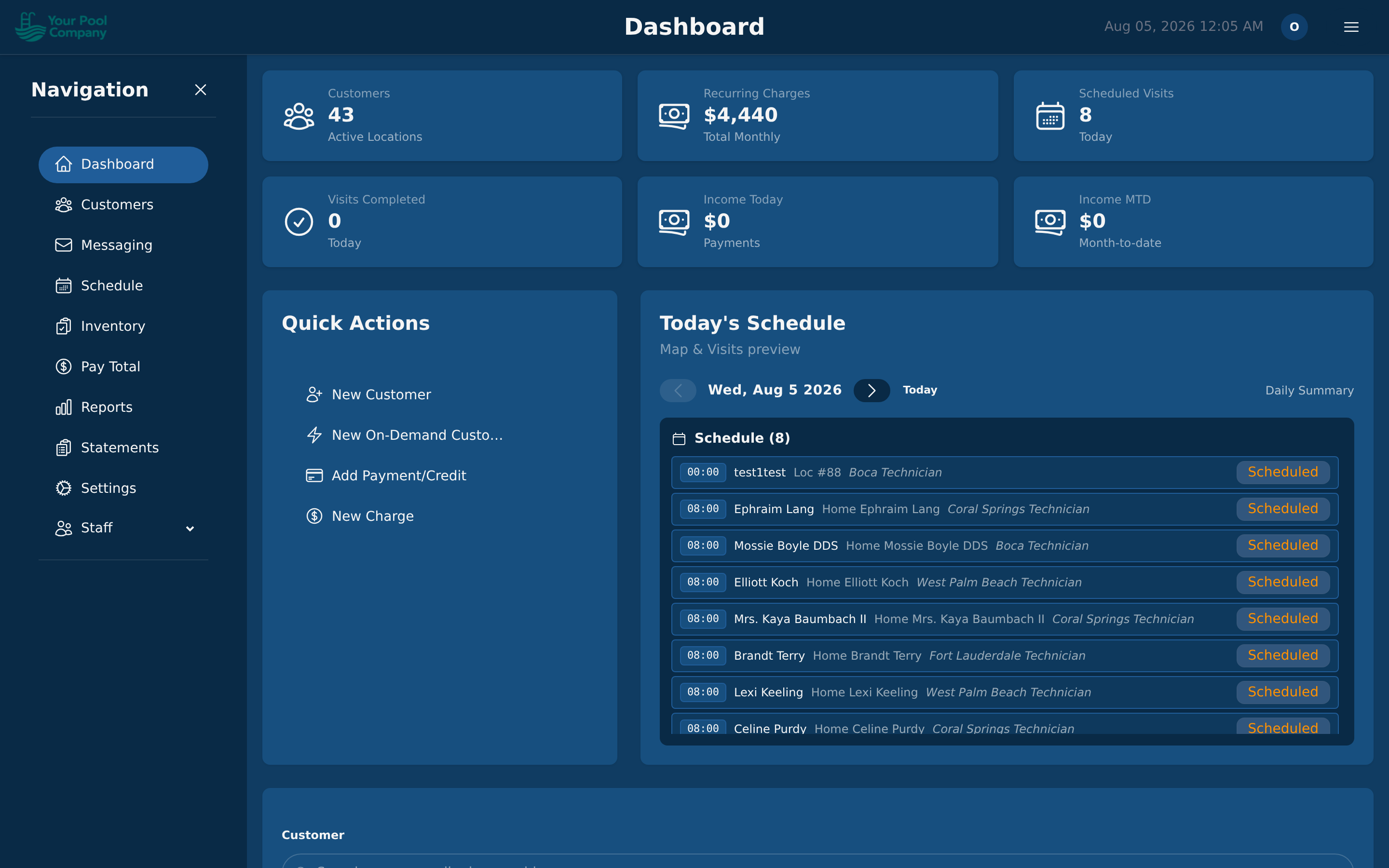
| Card | What it shows |
|---|---|
| Customers | How many active locations you're servicing |
| Recurring Charges | What your repeating services add up to each month |
| Scheduled Visits | Stops booked for today |
| Visits Completed | Stops finished so far today |
| Income Today | Money collected today |
| Income MTD | Money collected this month so far |
Below the tiles, Quick Actions gets you straight to the things you do most: New Customer, New On-Demand Customer (see Section 8), Add Payment/Credit and New Charge. Today's Schedule shows the day's stops beside it, and there's a customer search further down the page.
The menu down the left takes you everywhere else:
| Menu item | What's there |
|---|---|
| Dashboard | Today's numbers |
| Customers | Your customer list |
| Messaging | Emails and text messages |
| Schedule | The calendar and routes |
| Inventory | Supplies and truck stock |
| Pay Total | Payroll |
| Reports | Revenue, tax, and team reports |
| Statements | Monthly bills |
| Billing | Charges, payments, and credits |
| Settings | Company setup, technicians, services, integrations |
| Staff | The people who log in, and what each of them may do |
You may not see all of these. The menu only shows what your role allows. An office staff member with billing access won't see Pay Total unless their role includes it — that's normal, not a fault. See Section 3.