9. Estimates
An estimate is a priced offer for one customer: a list of lines with quantities, prices and tax, a total, your terms, and an expiry date. You send it by email, by text, or as a link. The customer opens it, types their name, optionally signs, and approves or declines. An approved estimate puts its charge on the customer's account, so statements, automatic payments and the QuickBooks export pick it up without any manual entry. You then schedule as many jobs as the work needs.
Every Estimates screen has small ? buttons beside its titles and fields. Point at one, or tap it on a phone, to read what that part does; Read more in the manual at the bottom of the explanation opens the matching section of this chapter. The ? beside the page title in the header explains the module as a whole.
9.1 The Estimates list and estimate statuses
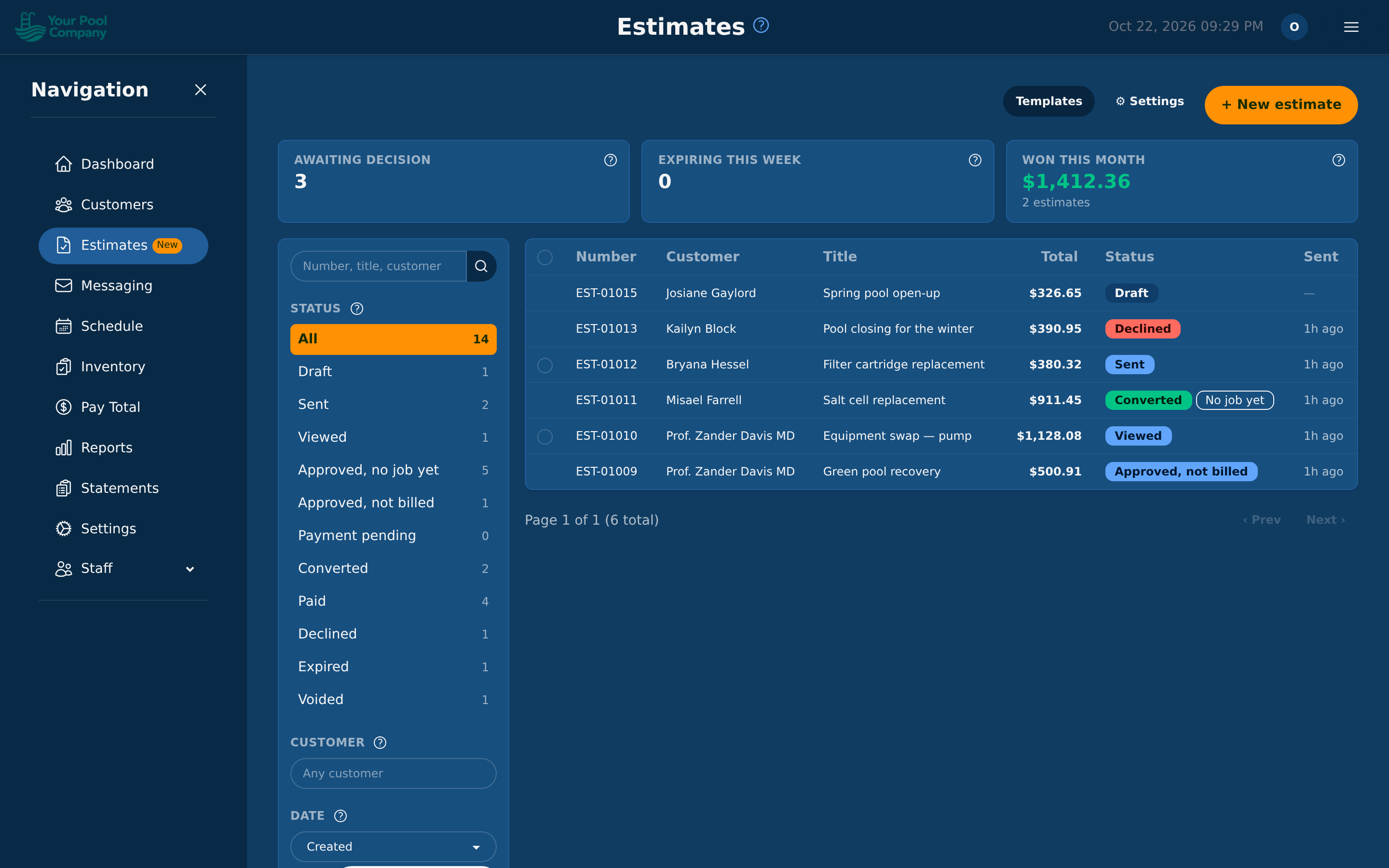
The Estimates page lists every estimate with its Number (EST-01001, EST-01002 and so on), Customer, Title, Total, Status and when it was Sent. Click a row to open the estimate; Ctrl-click (Cmd-click on a Mac) or the middle mouse button opens it in a new tab. Click a column heading to sort by it, and again to reverse the order.
Three figures at the top sum up your estimates, and clicking one lists those estimates:
- Awaiting decision: sent or viewed, not decided yet.
- Expiring this week: awaiting a decision and expiring within 7 days.
- Won this month: the total of the estimates approved since the first of the month, and how many.
The filter panel on the left of the list shows every status and how many estimates it holds; click a status to list those estimates. On a phone, or in a narrow window, the same filters open from the Filters button above the list, which shows how many filters are on. The search box at the top of the panel finds an estimate by its number, its title or the customer's name (press Enter). Customer narrows the list to one customer, and Date with From and To to the estimates created, or sent, in those days. Clear filters shows everything again.
Resending several estimates: tick the box of each sent or viewed estimate (the box in the heading ticks every one on the page) and click Resend (the button shows how many are ticked, for example Resend 2), then confirm. Each customer gets a new link by your default send channels (9.10), to the addresses on their record, exactly as Send / Resend on the estimate page does (9.4). The page then lists what was resent, and anything that was not, with the reason.
| Status | What it means |
|---|---|
| Draft | Saved, not sent yet. Only a draft can be edited |
| Sent | Sent to the customer, not opened yet |
| Viewed | The customer opened the estimate page |
| Approved, not billed | Approved by the customer; its charge is posted later, at the moment chosen on the estimate (9.3) |
| Converted | Approved, and its charge is on the customer's account |
| Approved, payment pending | Approved and paid by bank transfer; the money has not cleared yet (9.3). In the filter panel this status is called Payment pending |
| Paid | Approved and paid online; the charge and the payment are on the customer's account |
| Declined | The customer declined it |
| Expired | Not decided by its expiry date |
| Voided | Cancelled by your staff |
The filter Approved, no job yet lists approved estimates (also those already billed or paid) that have no job on the schedule yet, and those rows carry a No job yet badge. Use it to see which approved work still has to be booked.
9.2 Creating an estimate
- On the Estimates page, click + New estimate.
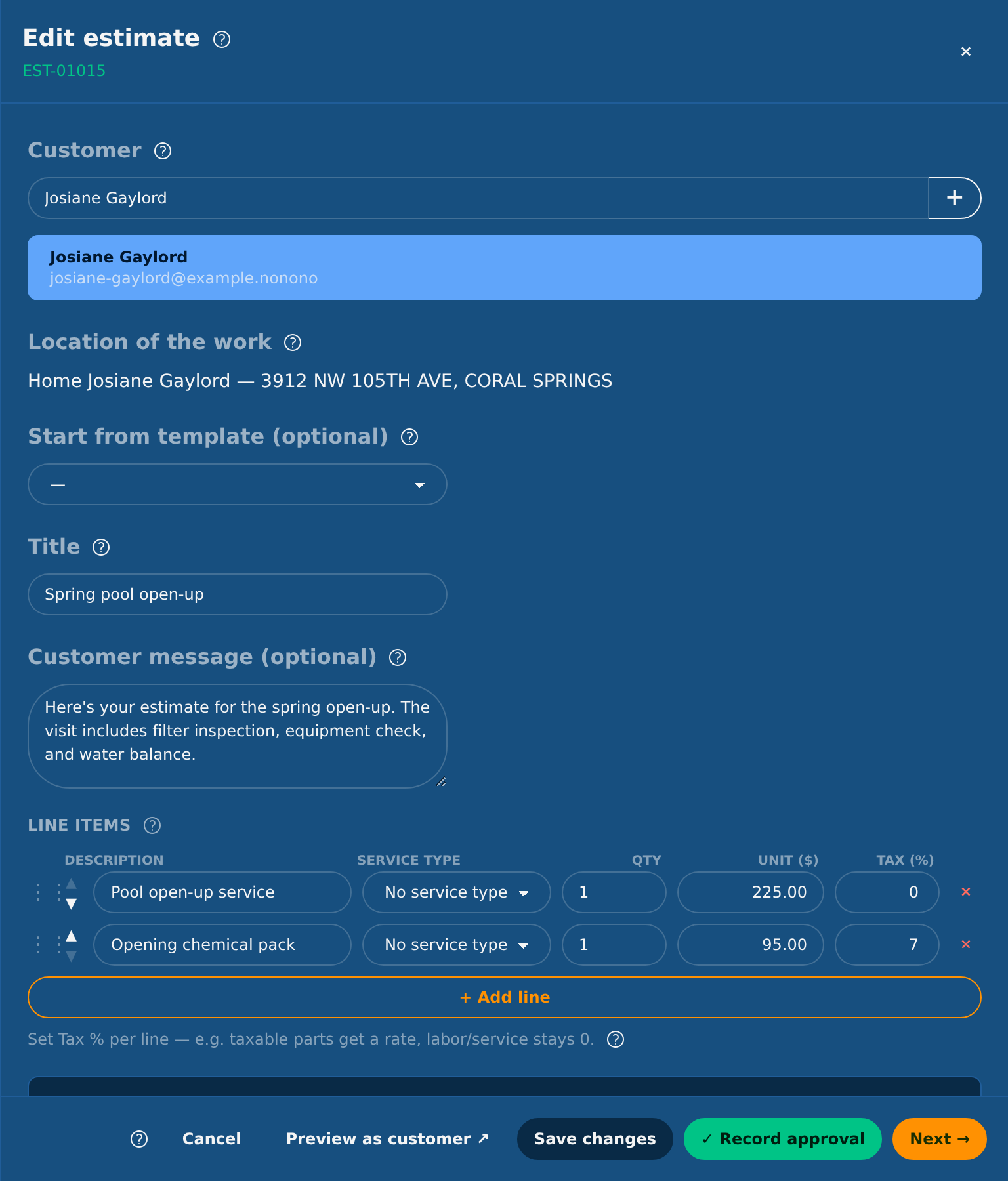
- Customer: search by name, email or address and pick the customer from the list. For a customer who is not in EZ Pool Biller yet, click the + button beside the Customer field (see A new customer from the builder below).
- Location of the work: a customer with one location gets it automatically. A customer with several locations needs one chosen before the estimate can be sent. The jobs you schedule from the estimate go to this location.
- Start from template (optional): pick a template to fill in the title, message, lines, terms and validity (see below).
- Title: a short name for the work. The customer sees it as the heading of the estimate.
- Customer message (optional): a note shown above the lines.
- Line items: for each line, a Description, Qty, Unit ($) price and Tax (%). Click + Add line for more lines, and × to remove one. Drag a line by its handle (⋮⋮), or use its ▲ and ▼ buttons, to move it: the customer sees the lines in this order. If you have service types, Service type links a line to one; an estimate with a service type on any line posts its charge as a service charge, otherwise as a manual charge. The panel shows the Subtotal, Tax and TOTAL as you type. A price must be a plain amount such as 1,234.50: anything else is shown in red and the price keeps its last amount.
- Terms & conditions (optional): shown to the customer on the approval page. A new estimate starts with your default terms (9.10).
- Valid for (days): how long the customer has to decide, counted from the day you send the estimate. Leave it empty to use your default (30 days unless you change it). The link works until the end of the last day, in your company's time zone.
- Collection method: how the customer pays (9.3).
- Click Save draft. The estimate gets its number.
- Preview as customer ↗ opens, in a new tab, the page your customer will see, marked Preview. Nothing on it can be approved, declined or paid, and no link is sent. It shows the saved draft: save your changes first.
- Click Next → to open the send panel (9.4), or close the panel and send it later. If you changed the draft after saving it, the button reads Save and continue → and the panel says Unsaved changes: the button saves the changes first, so the customer always receives the estimate as it is on screen. If the customer has already approved, by phone, text message, email or in person, click ✓ Record approval beside Next → instead (9.7): the draft is saved and approved without being sent.
The note at the bottom of the panel lists what is still missing, for example "Add a customer, a title." With Require payment to approve, at least one payment method must be ticked. Save draft stays disabled until everything is filled in.
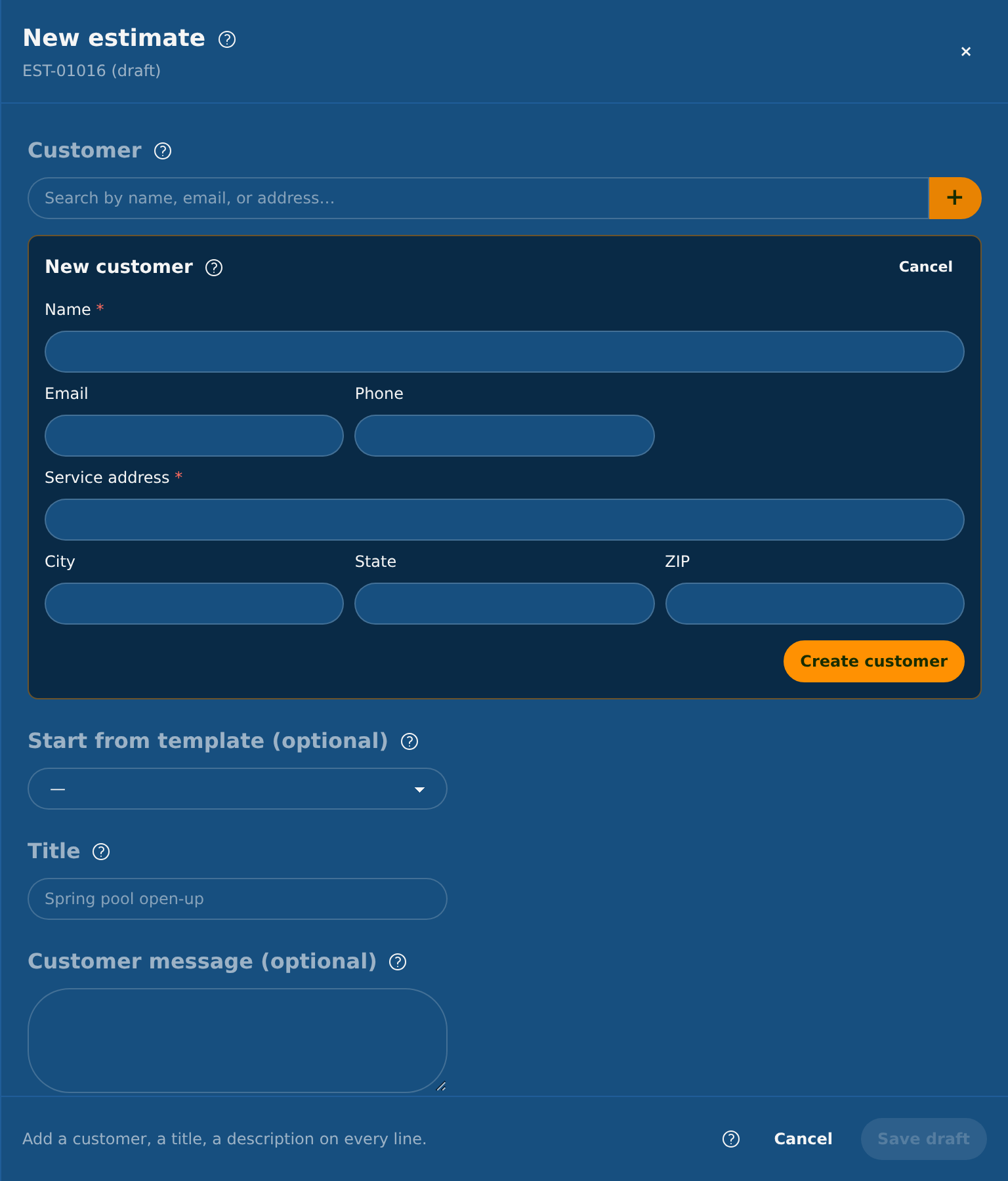
A new customer from the builder: the + button beside the Customer field opens a New customer form inside the builder. It is shown only when your role may add customers. Fill in Name and Service address (both required), and, if you have them, Email, Phone, City, State and ZIP, then click Create customer. The customer is created with that address as their only location, without any job, and the builder picks the customer and the location at once. If the email address already belongs to a customer, the form says "A customer with this email already exists" with that customer's name; click Use this customer to pick that customer instead. Cancel closes the form. A customer created without an email address cannot receive the estimate by email: send it by text (when the customer has a text-message number) or as a link, or add the address on the customer's page first (Section 4).
Editing: a draft can be changed at any time with Edit on the estimate page; click Save changes. The customer can be changed too: the location of the work then follows the new customer. A draft you no longer need can be removed with Delete draft; its number is not used again. Once an estimate is sent it can no longer be edited or deleted. To change a sent estimate, void it (9.7) and create a new one. To give the customer more time, use Extend validity (9.6).
The validity counts from the day the estimate is first sent, not from the day the draft is saved: a draft valid for 30 days that waits two weeks still gives the customer 30 days. Until it is sent, the estimate page shows, for example, Valid for 30 days from sending.
Tax on each line
Tax is set per line, as a percentage with up to three decimals (8.875%, for example). Every new line starts at 0%: there is no company-wide tax rate, so type your rate on each taxable line. For example, parts get your sales tax rate and labor stays at 0. The tax on each line is shown to the customer, and the approved estimate posts its tax as a separate tax line, which appears in the sales-tax report (Section 16).
Templates
A template is a reusable estimate: a name, a title, a message, terms, a default validity in days, and lines. Open Templates on the Estimates page to see them, click + New template to add one, Edit to change one, and Archive to remove it from the template list in the builder. Leave Default expiry (days) empty to use your default validity (9.10). The Total in the list, and the totals in the template editor, include each line's tax. Click a column heading (Name, Title, Items or Total) to sort the list by it, and again to reverse the order.
Your account starts with six sample templates for common jobs: Spring open-up, Equipment swap (pump), Green pool recovery, Filter cartridge replacement, Salt cell replacement and Pool closing (winterizing). Their prices are examples, their terms start with "Sample — replace with your own." and their lines are at 0% tax. Replace the prices, terms and tax rates with your own before you use them, and archive the ones you do not need.
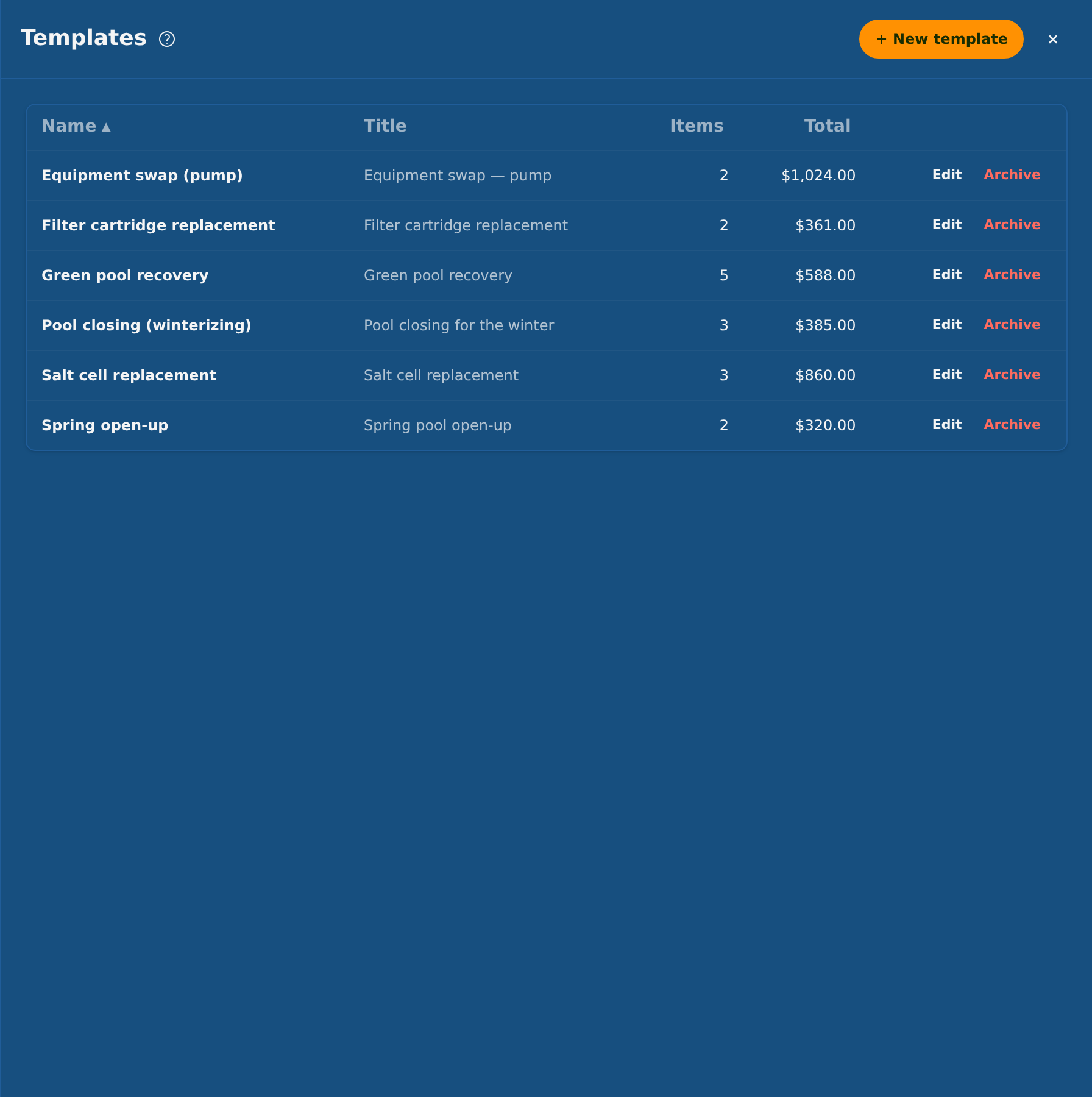
Applying a template in the builder replaces the title, message and lines, and sets the terms and validity when the template has them. You can change anything afterwards.
9.3 How the customer pays: the collection method
Each estimate has one of two collection methods:
| Collection method | The customer sees | What is posted to the customer's account | Highest total (default) |
|---|---|---|---|
| Bill to customer balance | An Approve button | A charge and its tax, at the billing moment you choose. You collect it later through statements and automatic payments | $5,000 |
| Require payment to approve | Pay with card, Pay with PayPal, Pay by bank (ACH), as you allow | A charge, its tax and the payment together, so the estimate leaves nothing to collect | $100,000 by card or PayPal; $25,000 by bank |
The limits on bill-to-balance and pay-on-approval totals are settings (9.10). The bank limit is the same $25,000 limit as in the customer portal. If a bill-to-balance estimate goes over its limit, the builder switches it to Require payment to approve. An estimate over both limits cannot be saved: split it into several estimates.
Bill to customer balance: when the charge posts
With Bill to customer balance, choose in Bill the customer when the charge reaches the customer's account:
| Choice | The charge is posted | The customer reads |
|---|---|---|
| When the customer approves | When the customer approves | "The amount is added to your account when you approve." |
| When the first job is completed (the default) | When the first job scheduled from the estimate is completed. Later jobs post nothing | "The amount is added to your account when the first job of the work is completed." |
| When I confirm the work is done (Bill now) | Only when someone presses Bill now on the estimate | "The amount is added to your account when the work is done." |
The customer sees this sentence on the approval page and on the receipt. Until the charge is posted, an approved estimate shows Approved, not billed. On the estimate page you can change the moment, and press Bill now to post the charge earlier (9.7). Once the charge is posted, the estimate shows Converted and the moment can no longer change. The charge is posted once only, whichever way it happens.
The default for new estimates is a setting (9.10).
Require payment to approve
With Require payment to approve, the customer approves by paying. Under Accept payments via, tick the payment methods this estimate offers: Card (Stripe), PayPal and Bank (ACH). Only the methods set up in Settings > Payments are listed (see Section 2). Without any, the builder says Add a payment gateway (Stripe or PayPal) to let customers pay to approve.
Card and PayPal: the customer is taken to Stripe's or PayPal's payment page and comes back to a Paid page. The estimate becomes Paid, and the charge, its tax and the payment are posted together. If the customer pays and closes the page before coming back, the payment is still recorded: EZ Pool Biller checks with Stripe or PayPal about 30 minutes after the payment started and records it then. A payment the customer started but never finished is closed after 24 hours. Both times are settings (9.10).
Bank (ACH): offered only when bank transfers are switched on (see Section 2) and the total is $25,000 or less. A bank payment takes 3 to 5 business days to clear:
- The customer's approval is recorded at once, and the estimate shows Approved, payment pending. Nothing is posted to the customer's account yet.
- You can schedule the jobs, but each one shows Payment pending, do not start until the money clears.
- While the payment is pending, the estimate cannot be voided, gets no reminders and does not expire.
- When the money clears, the charge, its tax and the payment are posted, the estimate becomes Paid, and you receive an email.
- If the payment fails, nothing is posted, the estimate goes back to Viewed (awaiting payment), and its link works again for any payment method. The customer and your company are emailed. The jobs already scheduled stay on the schedule with Payment failed until you change them.
Processing fee: if you charge a processing fee in Settings > Payments, estimate payments carry it the same way as portal payments: your card fee for card and PayPal, and your ACH fee for bank payments. The customer sees the fee before paying, for example "Card: Processing fee of $3.00, so you pay $103.00." The fee is posted as its own line. The limits apply to the estimate total, before the fee.
Payments that cannot complete the estimate: if a payment arrives for an estimate that can no longer be approved (the customer declined it in another window, you voided it, or the customer paid twice from two windows), the money is not lost. It is recorded on the customer's account as a credit, the timeline shows Payment kept as account credit, and your company is emailed. The credit pays the customer's next charges, or you can refund it at Stripe or PayPal.
9.4 Sending an estimate
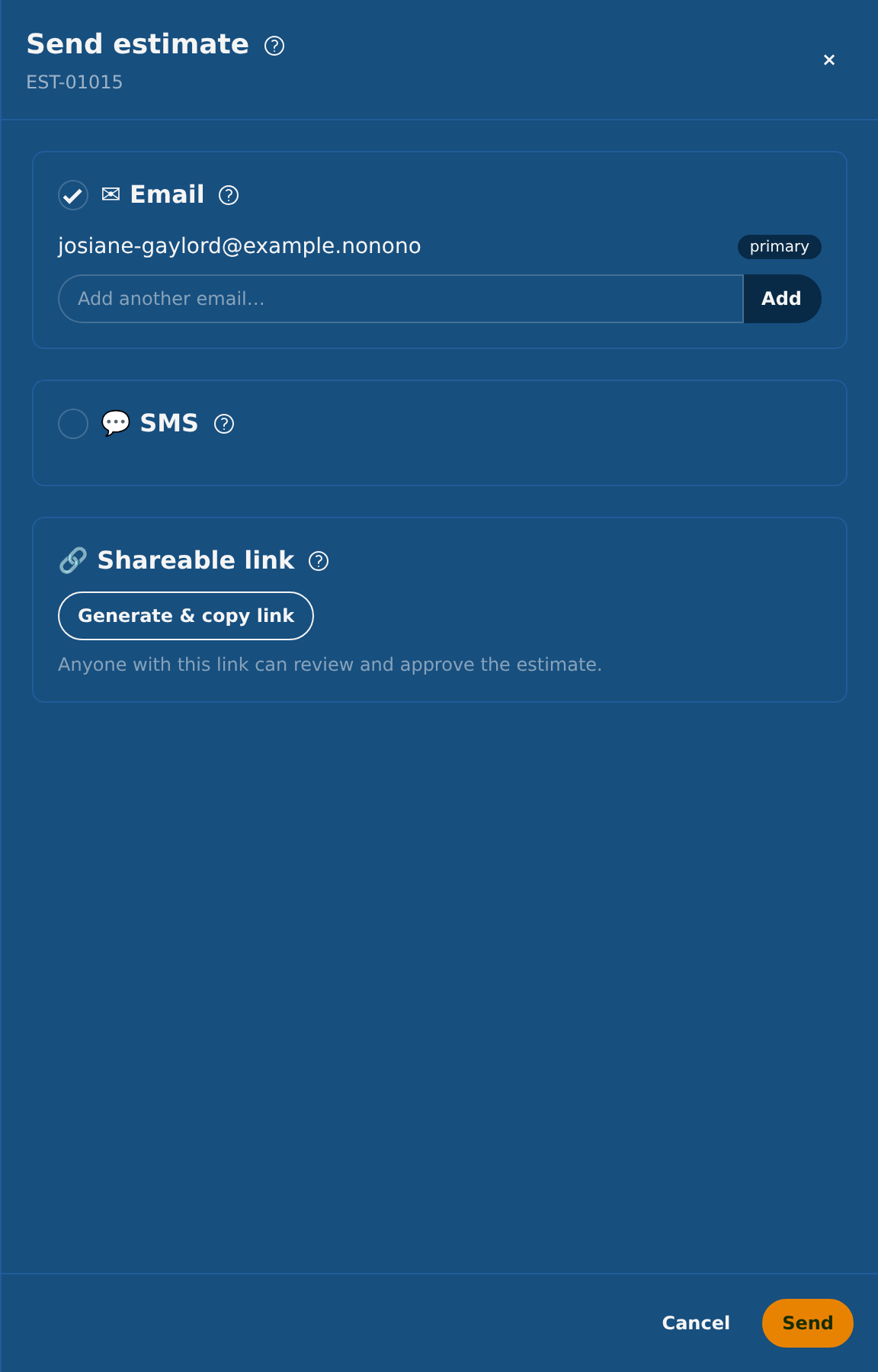
Click Next → in the builder, or Send / Resend on the estimate page. The Send estimate panel shows exactly who will receive the estimate:
- ✉ Email: the customer's email addresses. Add another with Add another email…. The email contains a Review and approve → button and the estimate as a PDF attachment. The subject comes from your settings (9.10).
- 💬 SMS: the customer's text-message number. Type another number in the box (the format +15551234567 is the most reliable) and click Add. The text reads, for example: "Your Company: Your estimate EST-01023 for $447.00 is ready. Tap to review & approve:" followed by the link and "Reply STOP to opt out." A number the customer turned texts off for is skipped.
- 🔗 Shareable link: Generate & copy link copies the estimate's link so you can send it any way you like. Anyone with the link can review and approve the estimate.
Which of Email and SMS start ticked is a setting (9.10). Click Send. The panel then lists what went out on each channel, and why anything was not sent, for example a missing address. Click Done to go to the estimate page.
Sending the link yourself: when you click Generate & copy link with neither Email nor SMS ticked, the estimate is marked as sent at once and nothing is emailed or texted. The panel says "The estimate is marked as sent. Share this link with the customer by any means (text, chat, email), then click Done." and offers a single Done button. No reminders are sent for an estimate whose latest send was a copied link (9.6).
What texts cost: estimate texts are billed like your other texts. The panel shows the rate, "Outbound text messages will be billed at … per message on your next invoice", and the texts appear on the SMS Usage tab (Section 14). Texts must be switched on for your account; if they are not, the panel says why.
Without email set up: estimates are emailed through your own email account (SMTP, see Section 2), never from a EZ Pool Biller address. Until it is set up, the panel says Email isn't set up yet, turns Email off, and offers Set up email (SMTP), which opens the email settings in place. Once they are saved, Email can be ticked again. Meanwhile you can still send by SMS, or copy the link and send it yourself.
Only the newest link works. Every send by email or text creates a new link, and the earlier links stop working. A customer who opens an older link sees "A newer copy of this estimate was sent to you. Please use the most recent email or text." Copying the link does not create a new one: it returns the link the customer already has.
When sending is refused, the panel says why:
- the total is $0.00;
- the customer has several locations and none is chosen on the estimate;
- the total is over the limit of the collection method;
- the estimate requires payment and offers no payment method that is set up, or offers only bank payment and is over $25,000;
- the estimate was sent by email or text less than 30 seconds ago (this stops a double click from sending it twice; copying the link is not affected);
- the expiry date has passed: extend the validity first (9.6).
9.5 What the customer sees
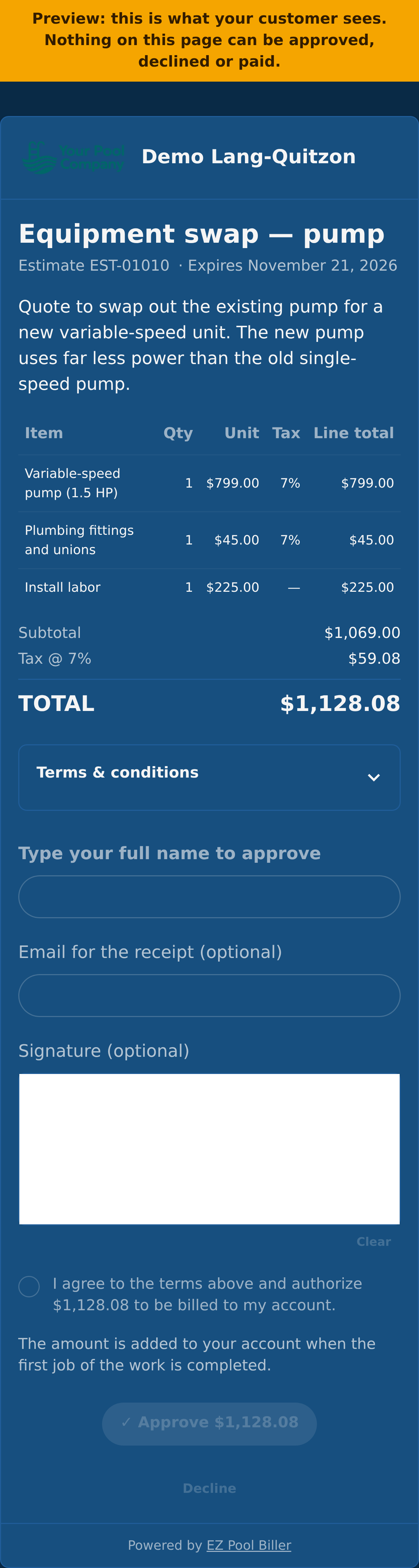
The link opens the estimate on your EZ Pool Biller web address (app.ezpoolbiller.com), with your logo and company name. The customer sees the title, number and expiry date, your message, every line with its tax, the subtotal, tax and TOTAL, and your Terms & conditions. Download PDF gives them a copy.
To approve, the customer:
- types their full name;
- optionally gives an email address for the receipt;
- optionally draws a signature with a finger or the mouse;
- ticks the box, for example "I agree to the terms above and authorize $447.00 to be billed to my account.";
- clicks ✓ Approve $447.00, or one of the payment buttons on an estimate that requires payment.
After approving, the customer sees an Approved (or Paid) page, and a receipt with the PDF is emailed to the address they typed, or to their email on file. An estimate paid by bank shows Approved, payment pending instead, and says the customer will be emailed when the payment clears.
To decline, the customer clicks Decline, can type a reason, and confirms with Yes, decline. You receive the reason by email (9.9).
The page works without JavaScript too. If the link is no longer usable, the customer sees one of these messages instead of the estimate:
| The customer sees | Because |
|---|---|
| "A newer copy of this estimate was sent to you. Please use the most recent email or text." | You sent the estimate again: only the newest link works |
| "This estimate has been withdrawn by the sender." | You revoked the link or voided the estimate |
| "This estimate has expired." | The expiry date has passed |
| "This estimate is no longer awaiting a decision." | It was already approved or declined |
| "This estimate is no longer available." | The customer was deleted |
Proof of approval: EZ Pool Biller keeps the typed name, the signature, the time, the customer's device and internet address, and a frozen copy of the estimate exactly as the customer approved it. This record is kept even if the customer is later deleted.
9.6 Reminders and expiry
Reminders: a customer who has not decided gets a reminder 7 days and 1 day before the estimate expires, sent from 9:30 a.m. in your company's time zone. The email subject reads "Reminder: your estimate from Your Company expires on November 13, 2026", and the text says the same. Reminders go by the channels and to the addresses of the latest send. There is no reminder when:
- the latest send was a copied link only (you shared that link yourself);
- you revoked the link;
- reminders are switched off (9.10);
- the estimate was sent when that reminder's day had already started, for example a reminder 7 days before expiry on an estimate valid for 5 days.
Each reminder appears on the estimate's timeline, with what was sent and to whom.
Expiry: the link stops working when the expiry day ends, in your company's time zone. Once a day (from 2:45 a.m. by default), estimates still waiting for a decision after their expiry date are marked Expired. A payment the customer started before the expiry still completes the approval.
Giving more time: Extend validity on the estimate page sets a new expiry date for a sent, viewed or expired estimate (from today up to 365 days ahead; the link works until the end of that day). The link the customer has keeps working until the new date. An Expired estimate's link stays closed: after extending it, click Send / Resend to send the customer a new link, and the estimate shows Sent again. The timeline shows Validity extended with the old and new dates. Reminders start again, counted back from the new expiry date, except a reminder whose day had already started when you extended (the same rule as at the first send).
9.7 The estimate page
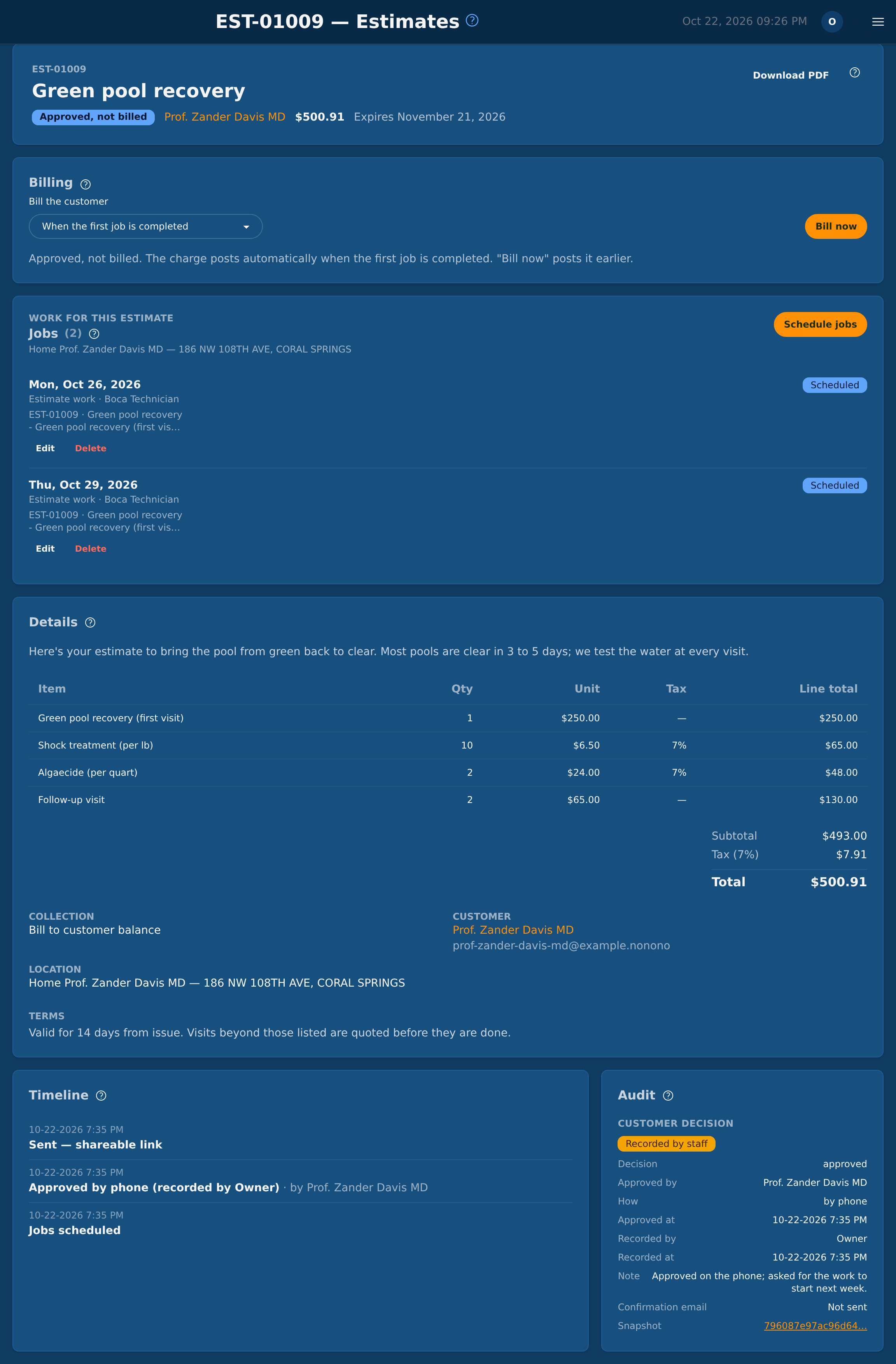
Click an estimate in the list to open it. The top shows the number, title, status, customer, total and expiry date, with these buttons. The customer's name is a link to the customer's page when your role may view customers:
| Button | Shown when | What it does |
|---|---|---|
| Download PDF | The estimate has a working link | Opens the estimate as a PDF |
| Preview as customer ↗ | Draft, Sent or Viewed | Opens the customer's page, read-only, in a new tab (9.2) |
| Edit | Draft | Opens the builder (9.2) |
| ✓ Record approval | Draft, Sent or Viewed | Records an approval the customer gave you by phone, text message, email, in person or another way (see Recording an approval below). On a Require payment to approve estimate, or one past its expiry date, the button is dimmed and only explains why it cannot be used |
| Send / Resend | Sent or Viewed, or Expired with a new expiry date | Opens the send panel (9.4). Every send creates a new link and stops the old ones |
| Extend validity | Sent, Viewed or Expired | Sets a new expiry date (9.6) |
| Revoke link | Sent or Viewed | Stops the current link. The customer can no longer approve until you send a new link with Send / Resend. No reminders are sent after a revoke |
| Void | Any status except Approved, Converted, Paid, Voided and Approved, payment pending | Cancels the estimate for good. Its links stop working |
| Delete draft | Draft | Removes the draft from the Estimates list, after a confirmation. The customer never saw it |
Revoke link and Void also end any payment the customer has started on the link. A payment that Stripe or PayPal had already accepted is still recorded; if the estimate can no longer be approved, it is kept as a credit on the customer's account (9.3).
Billing (bill-to-balance estimates, once sent): shows when the charge posts, with Bill the customer to change it until the charge is posted. Once the customer has approved, Bill now posts the charge at once, after a confirmation: "Post the charge of $447.00 to the customer's account now?" When it is posted the card says Billed: the charge is on the customer's account.
Jobs: the jobs scheduled from the estimate (9.8).
Details: the lines, totals, collection method, payment methods, customer, location and terms.
Timeline: everything that happened, with the date and time in your company's time zone: each send, by which channel and to whom; anything not sent or not delivered (in red, with the reason); the customer's first view; reminders; the decision; payments; billing; jobs scheduled, changed or deleted; revokes and voids.
Each email and text of a send shows what became of it: Waiting to go out, Sending, Sent (accepted by your mail server or the text provider), Delivered (texts, once the phone company confirms it), or Not delivered / Failed in red, with the reason.
Audit: the latest Customer decision (signer, email, decision, when, signature, and Snapshot, the frozen copy of what the customer approved; an earlier decision, such as an approval whose bank payment failed, is listed as replaced; an approval you recorded is marked Recorded by staff, with who approved, how, when, who recorded it, the note and whether the confirmation email was sent) and the Ledger lines the estimate posted to the customer's account. Click a ledger line's FT # number to open that transaction in the customer's billing history (if your role can see it).
Recording an approval the customer gave you
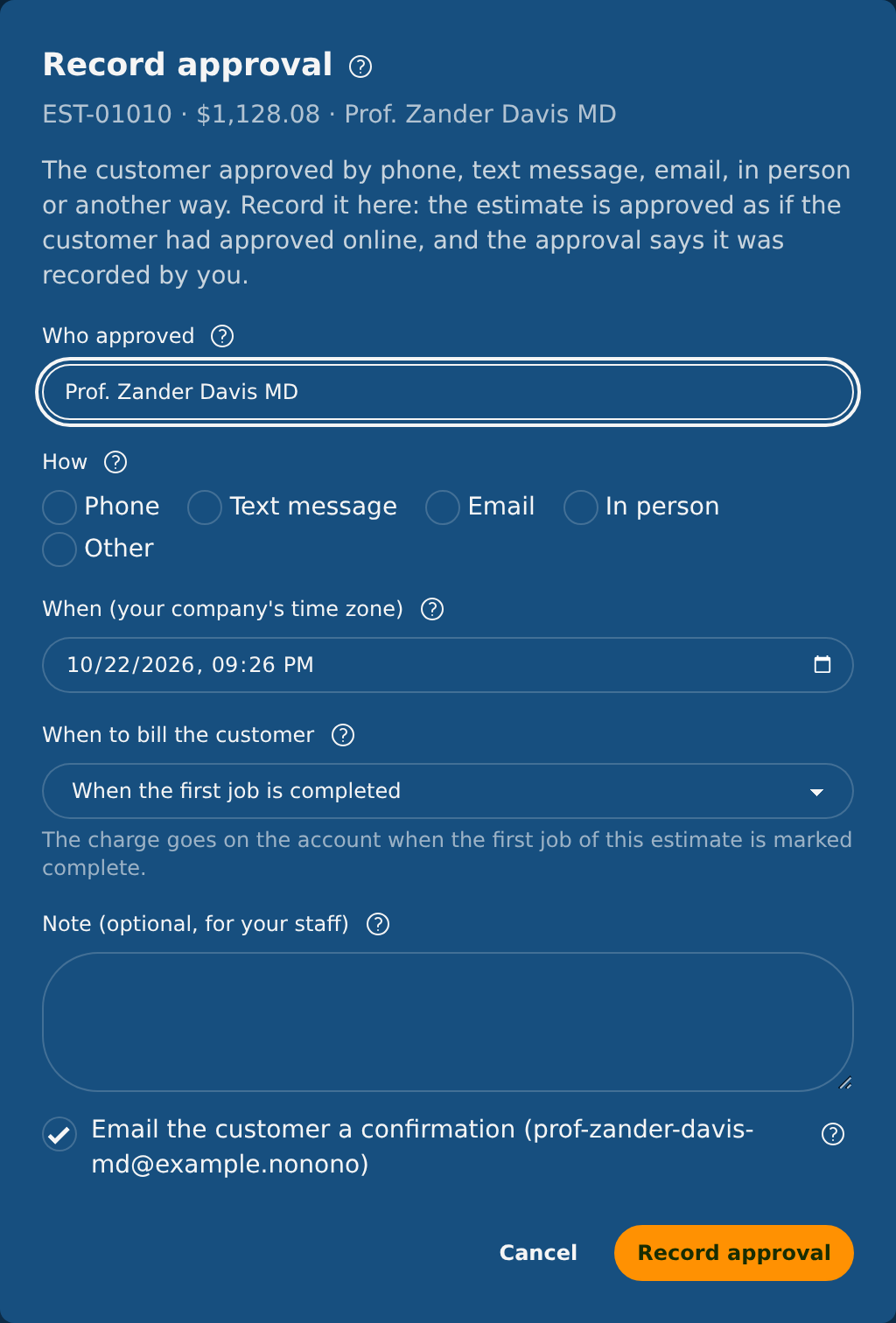
When the customer says yes on the phone, by text message, by email or in person, click ✓ Record approval on the estimate page, or beside Next → in the builder (the draft is saved first). The Record approval window asks:
- Who approved: the customer's name is filled in; change it if someone else approved, for example the customer's partner or property manager.
- How: Phone, Text message, Email, In person or Other.
- When (your company's time zone): now by default. The time cannot be in the future or before the estimate was created.
- When to bill the customer: Now, when I record this approval puts the charge on the customer's account as soon as you save; When the first job is completed puts it there when the first job of the estimate is marked complete; When I confirm the work is done (Bill now) charges nothing until someone presses Bill now (9.3). The line under the choice says the same.
- Note (optional, for your staff): shown in the audit, never to the customer.
- Email the customer a confirmation: sends the same receipt the customer gets after approving online, saying how the approval was given. The box shows the address it goes to. It is available only when the customer has an email address and your company's email (SMTP) is set up; otherwise it says why it is not available.
Click Record approval. Nothing else is sent to the customer, and your company does not receive the "approved" email. A draft that was never sent can be approved this way directly: it is marked as sent and approved in the same step, and no link is sent to anyone. The estimate is then approved exactly as if the customer had approved online: the link the customer has shows the approved page, reminders stop, and the timeline shows, for example, Approved by phone (recorded by Dana Smith).
Only estimates billed to the customer's balance can be recorded this way, and only up to the bill-to-balance limit (9.10): a Require payment to approve estimate is approved only by its payment. An estimate past its expiry date must first get a new date with Extend validity (9.6). If the customer approves online at the same moment, the first approval counts and the other is refused.
9.8 Scheduling the work
An approved estimate creates no job by itself. Once the customer approves, the estimate page shows a Jobs section with Schedule jobs. The approval email to your company has a Schedule the jobs button that opens the same window.
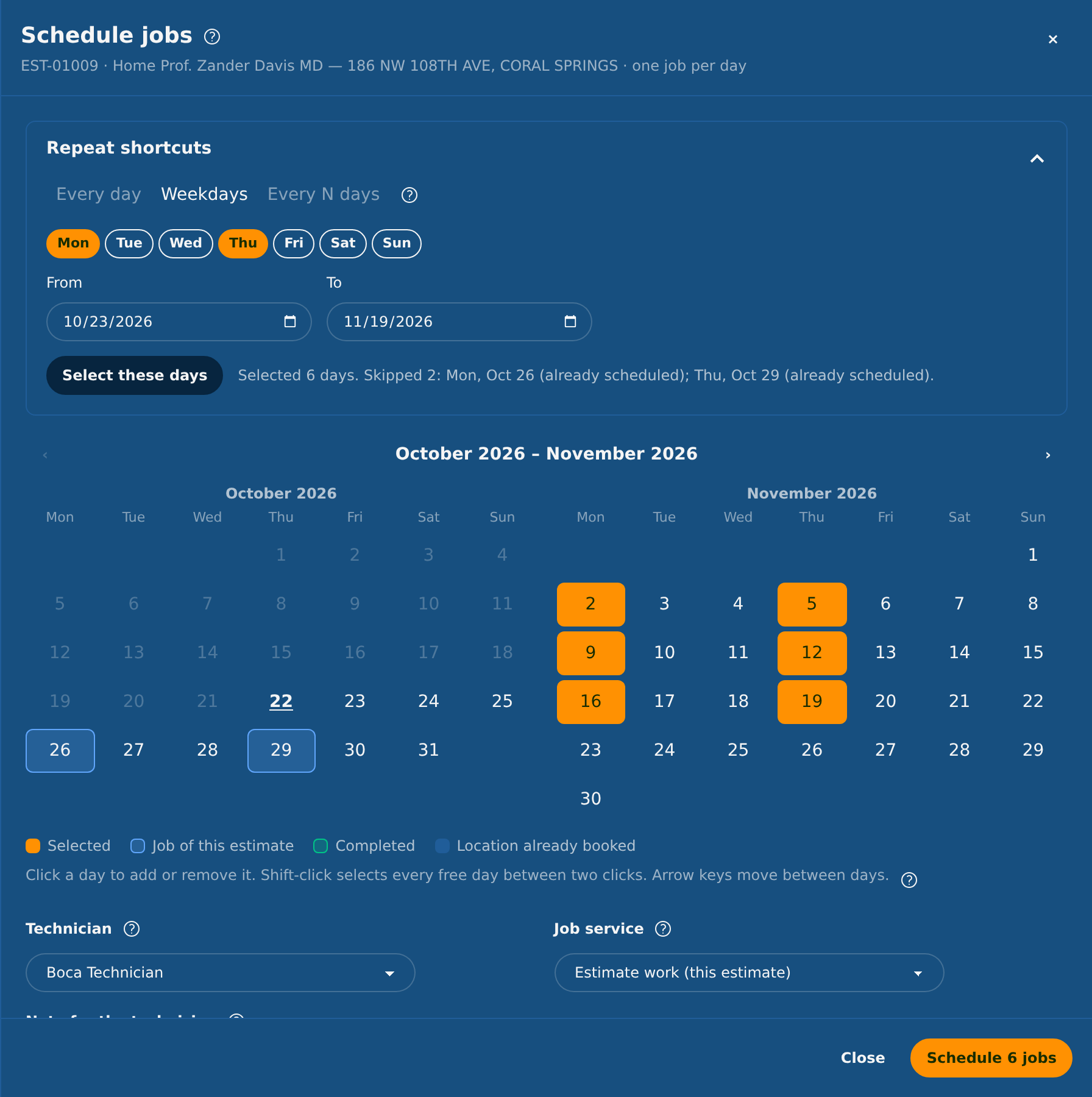
Choosing the days: the calendar is the only place where days are chosen. It shows two months on a computer and one on a phone.
- Click a day to add it, click it again to remove it.
- Shift-click selects every free day between two clicks.
- Past days cannot be chosen.
- Days that already have a job of this estimate are marked Job of this estimate or Completed.
- The arrow keys move between days, for keyboard users.
- Days on which the location already has another one-time job are marked Location already booked and cannot be chosen: a location has one one-time job per day.
Repeat shortcuts select days on the calendar for you; nothing repeats on its own afterwards:
| Shortcut | Selects |
|---|---|
| Every day | Every day from From to To |
| Weekdays | The days of the week you choose (Mon to Sun) from From to To |
| Every N days | Every N days (Every (days)) from Starting, ending after a number of jobs (Ends after) or on a date (Ends on) |
Click Select these days. Days that cannot be used (past, booked, or already a job) are skipped, and the window lists which and why. You can then add or remove single days on the calendar.
For all the new jobs:
- Location of the work: asked only when the estimate has no location yet and the customer has several.
- Technician (required): every job must be on a route.
- Job service: Estimate work (this estimate), or any one-time service from your catalog (Section 5).
- Note for the technician: filled in with the estimate number, title and lines; change it as needed.
There is no price on the jobs: the estimate carries the money. Click Schedule N jobs. All the jobs are created together, or none: if a day was taken in the meantime, nothing is created and the window names the day. One save creates at most 100 jobs (a setting, 9.10).
The jobs: each day becomes an ordinary one-time job at the estimate's location. It appears on the schedule, the technician's route and the customer's Services tab like any one-off job (Section 8). On the schedule, the job's details show the estimate number and title. On the customer's page the job shows its estimate too (9.13). A job from an estimate never posts a charge of its own, even when it is completed; with When the first job is completed, completing the first job posts the estimate's charge.
The Jobs section lists each job's date, service, technician and status. Edit changes the date, technician or note (a past or booked day is refused). Delete removes the job from the route; a completed job cannot be deleted. Schedule jobs adds more days.
With When the first job is completed, the charge is posted however the first job is marked complete: by the technician in the app, or from the office.
Jobs left after a closed estimate: an estimate whose bank payment failed is waiting for payment again, and its jobs stay on the schedule. If it is then declined, expires or is voided, the estimate page shows a red notice that lists the jobs still on the schedule, and your company is emailed. The estimate will not bill those jobs: delete them in the Jobs section, or keep them and bill the customer another way.
9.9 Emails to your company
EZ Pool Biller emails your company when:
| Event | |
|---|---|
| A customer approves | "Estimate EST-01023 approved by …", saying whether the charge is posted, with Schedule the jobs |
| A customer declines | "Estimate EST-01023 declined by …", with their reason |
| A bank payment clears | "Paid: estimate EST-01023, you can schedule the work" |
| A bank payment fails | "Bank payment failed: estimate EST-01023" |
| A payment is kept as credit | "Action needed: a payment for estimate EST-01023 was kept as credit" (9.3) |
| A payment arrives after the customer was deleted | "Action needed: refund a payment for estimate EST-01023". The money is not on any account: refund it at Stripe or PayPal |
| A closed estimate still has jobs on the schedule | "Action needed: estimate EST-01023 is closed but still has open jobs" (9.8) |
The emails go to the company email in Settings > Company, or to your admin users when it is empty, through your own email account (SMTP). Without it, nothing is emailed and the events show on the estimate's timeline only. Viewed and expired estimates show on the timeline only. Each group of emails has its own switch in the settings (9.10).
9.10 Estimates settings
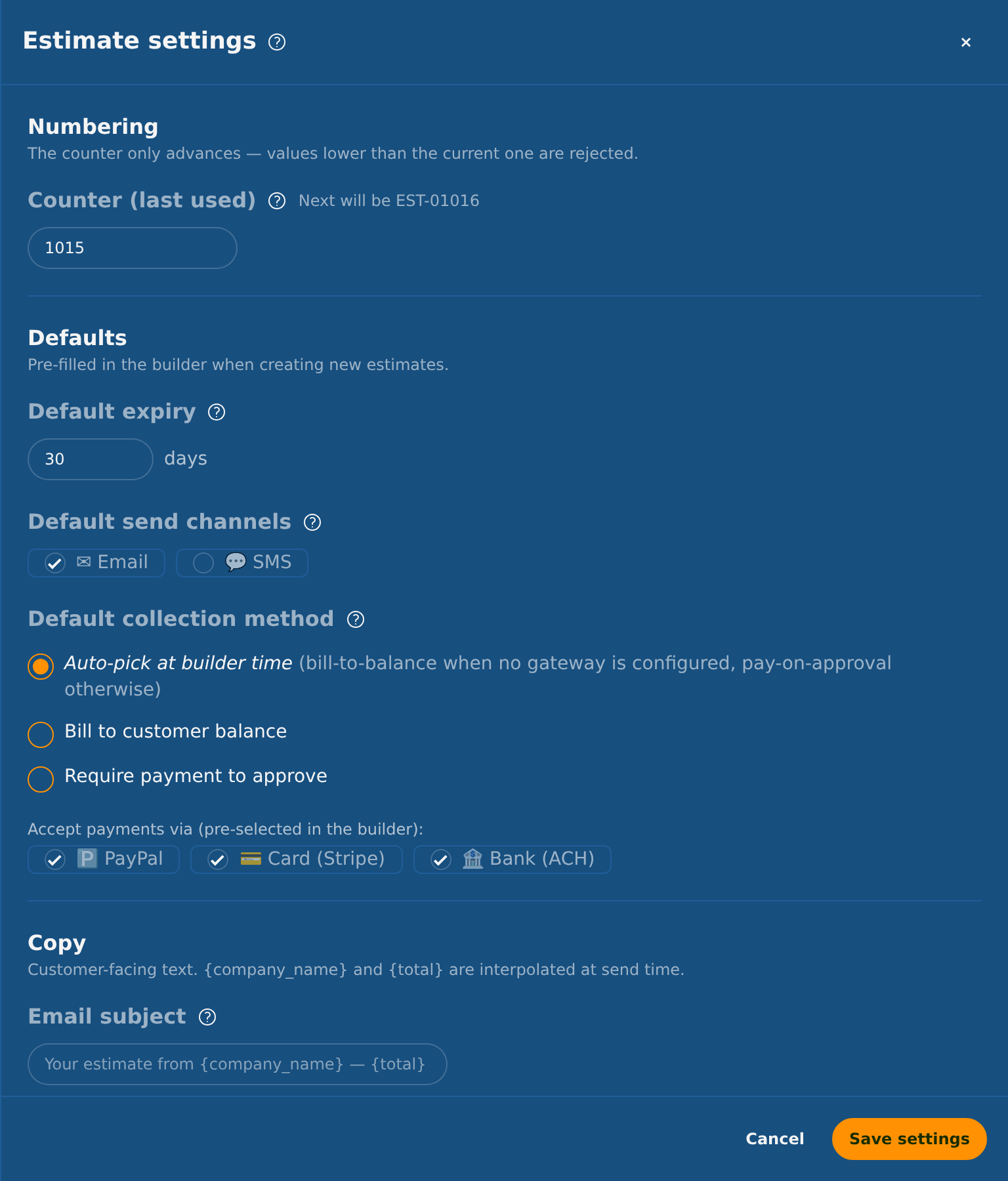
Open ⚙ Settings on the Estimates page. The panel is called Estimate settings. Click Save settings when done.
| Section | Setting | Default |
|---|---|---|
| Numbering | Counter (last used): the number of the last estimate. It can only go up, so a number is never used twice | — |
| Defaults | Default expiry: days a new estimate stays valid | 30 days |
| Default send channels: Email, SMS or both, ticked when the send panel opens | ||
| Default collection method: Bill to customer balance, Require payment to approve, or Auto-pick at builder time (bill to balance when no payment method is set up, payment otherwise), with the payment methods to tick by default | Auto-pick | |
| Copy | Email subject: {company_name} and {total} are replaced when sending | "Your estimate from {company_name} — {total}" |
| Default terms & conditions | Empty | |
| Jobs and billing | Bill a bill-to-balance estimate (default) (9.3) | When the first job is completed |
| Most jobs per save (9.8) | 100 | |
| Reminders | Send reminders, Days before expiry (for example 7, 1; whole days, at most 5) and Send from (00:00 to 22:00) | On; 7 and 1; 9:30 a.m. |
| Expiry | Mark expired estimates from (00:00 to 22:00) | 2:45 a.m. |
| Payments and limits | Bill to customer balance: limit ($) | $5,000 |
| Require payment to approve: limit ($) | $100,000 | |
| Wait for a payment in progress: how long a card or PayPal payment the customer started is kept open (30 to 1,440 minutes) | 1,440 minutes (24 hours) | |
| First check with the gateway after: when a payment the customer finished without coming back is first looked up | 30 minutes | |
| Email us when an estimate payment cannot be applied to its estimate and is kept as account credit | On | |
| Emails to your company | Email us when a customer approves or declines an estimate, and when a bank payment clears or fails | On |
| Text messages | Length your company name is cut to at the start of each estimate text | 30 characters |
Times are in your company's time zone. A time later than 22:00 is refused, because a later time can miss the day. A value outside its range is refused with a message and nothing is saved; nothing is changed without a word.
9.11 Who can use Estimates
Everything on these pages, and the Estimates tab of the customer's page (9.13), needs the Manage Estimates permission. Admin and Manager have it, and so does EZ Pool Biller support staff with full access. To give it to another role, add Manage Estimates under Staff > Roles & Permissions (see Section 3).
Searching for a customer in the builder also needs permission to view customers. Without it, the builder says so; ask an administrator to add it, or to start the estimate for you. The + button for a new customer (9.2) needs permission to add customers.
9.12 Where approved estimates show up
- The customer's account and statement: the charge and its tax, plus the payment and any processing fee for a paid estimate (Section 10). A bill-to-balance charge is collected like any other charge, including by automatic payments.
- Sales-tax report: the tax of each estimate (Section 16).
- QuickBooks: estimate charges are exported as "Miscellaneous Service" (Section 17).
- Your plan: an estimate's charge, or a job scheduled from it, counts the location for that month like any other activity (Section 18).
Deleting a customer closes their estimates: open estimates are voided and their links stop working. The approval records are kept.
9.13 Estimates on the customer page
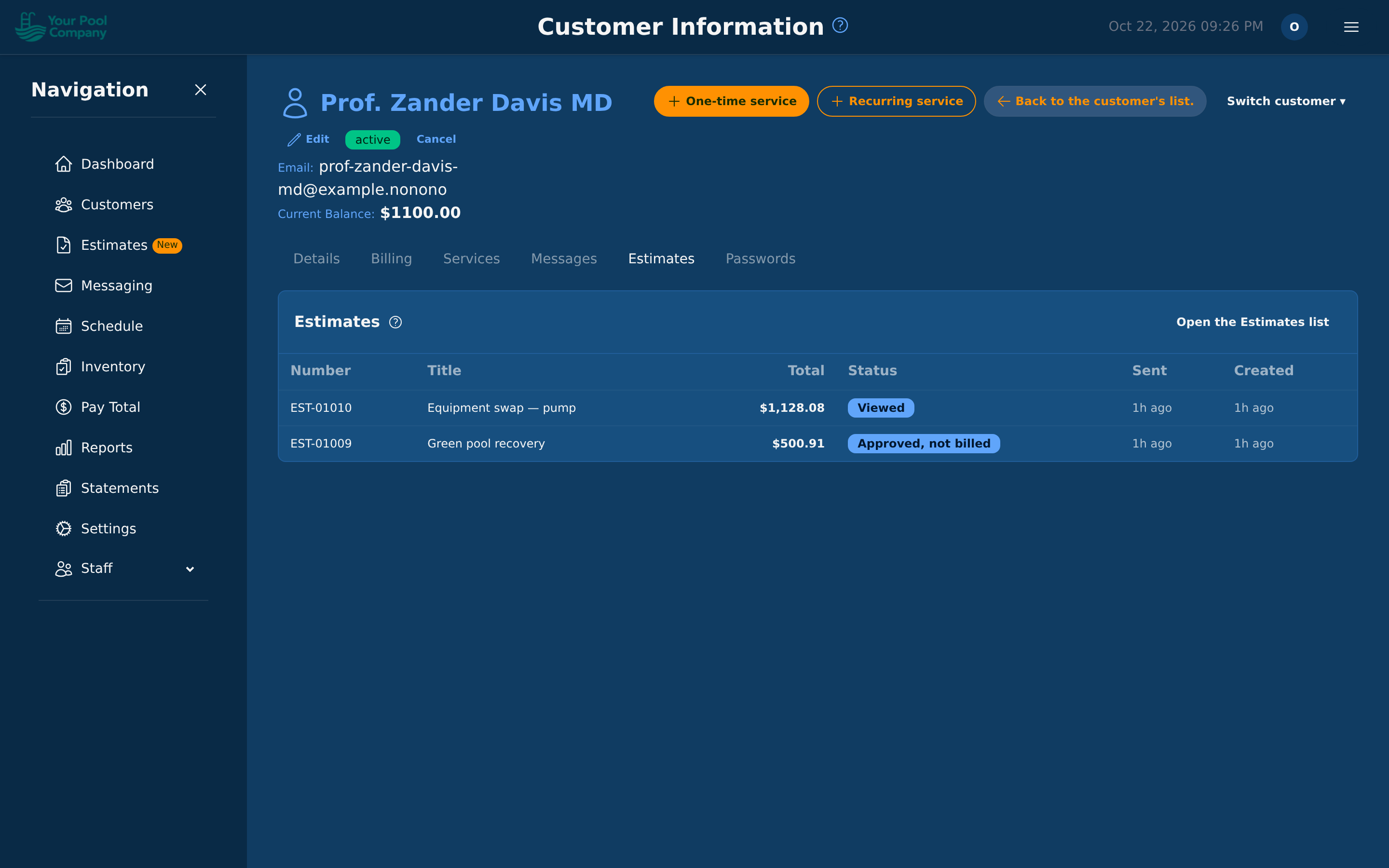
The customer's information page (Section 4) has an Estimates tab that lists that customer's estimates, newest first, with their Number, Title, Total, Status, when they were Sent and when they were Created. Click a number or a title to open the estimate. Open the Estimates list goes to the Estimates page. To start a new estimate for the customer, use + New estimate on the Estimates page.
Jobs from an estimate on the customer's page: a job has no price of its own, because the estimate carries the money. So wherever the customer's page lists the job, it shows its estimate instead:
- Services tab: under Estimate work, the estimate's number and title (a link to the estimate) and how the estimate is billed.
- Billing > Recurring Billing, box One-time services: the estimate's number and title; in Price, the estimate's total marked estimate total (with the number of jobs when several share it); in Billing date, the day the estimate's charge was posted; and in Billed, the estimate's state: Paid with the estimate, Billed with the estimate, Estimate payment pending, Estimate bills when the first job is completed, Estimate bills on "Bill now", or, for an estimate that was closed, for example Estimate voided.
The estimate's total is charged once, not once per job.